
Características
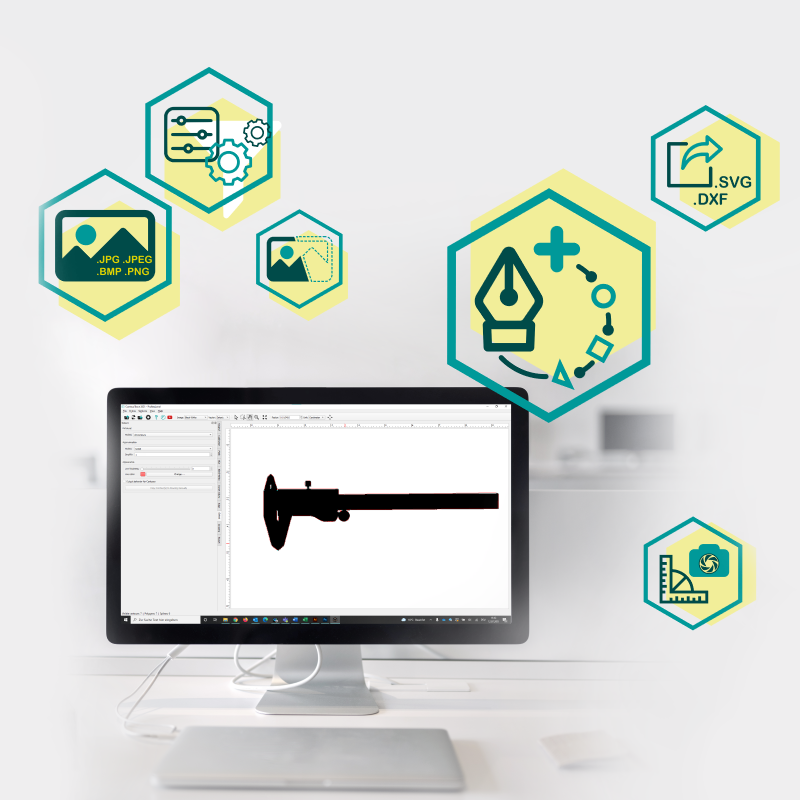
ContourTrace.
O Vectorizer de próxima geração.
A maneira mais fácil de extrair, ajustar e exportar contornos a partir de imagens.
Continue lendo e convença-se das funções abrangentes que a ContourTrace tem a oferecer.
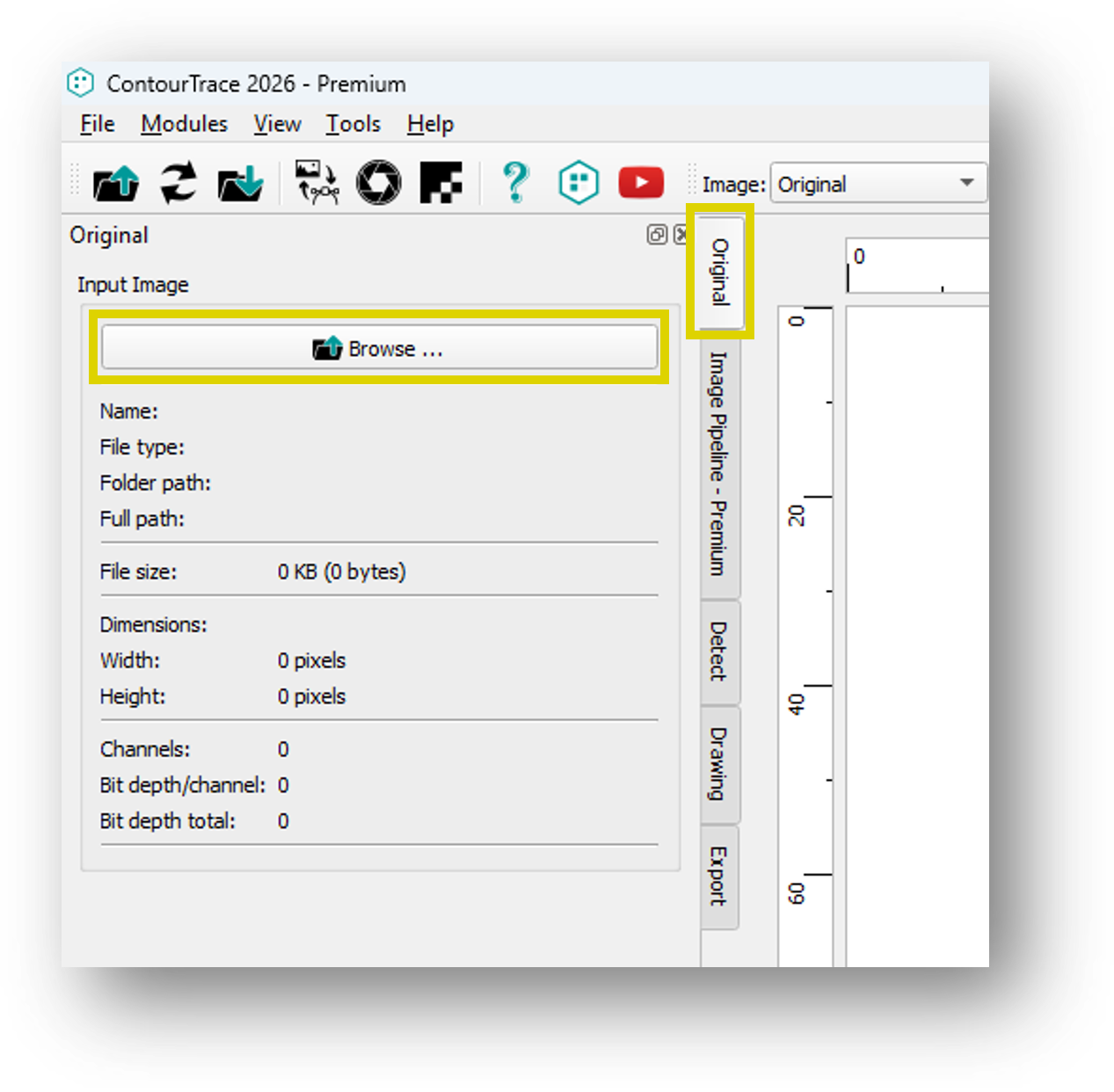
Operador de entrada de imagem única
O operador de entrada de imagem única permite a importação de arquivos de imagem padrão para o ContourTrace como gráficos rasterizados para processamento posterior e extração de contorno. Formatos de arquivo compatíveis: .jpg, .jpeg, .bmp, .png.
Pipeline de imagens
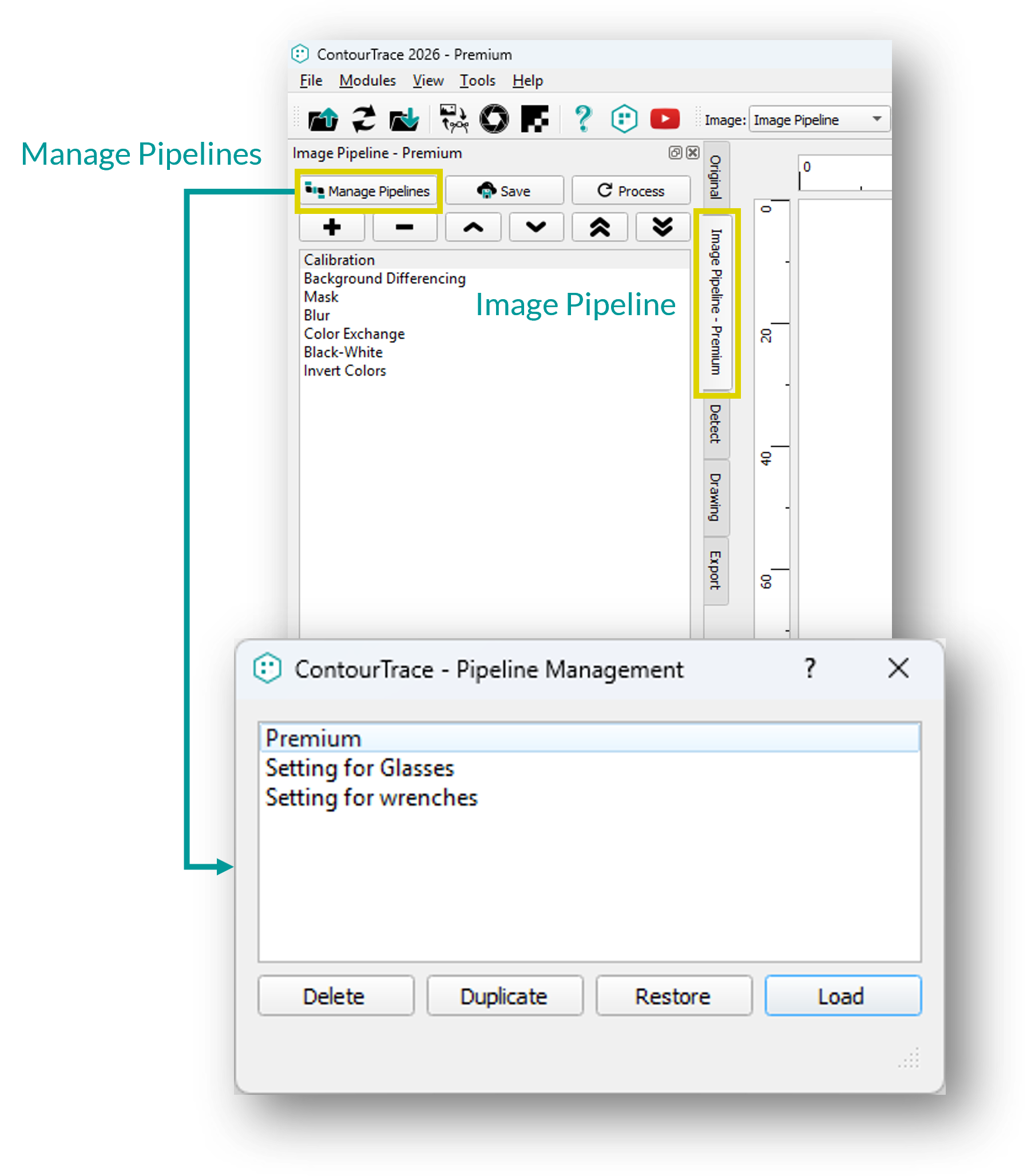
O Image Pipeline permite que os operadores de rasterização sejam organizados, configurados e gerenciados em uma sequência de processamento definida, proporcionando aos usuários maior controle sobre o processamento de imagens antes da conversão em dados vetoriais.
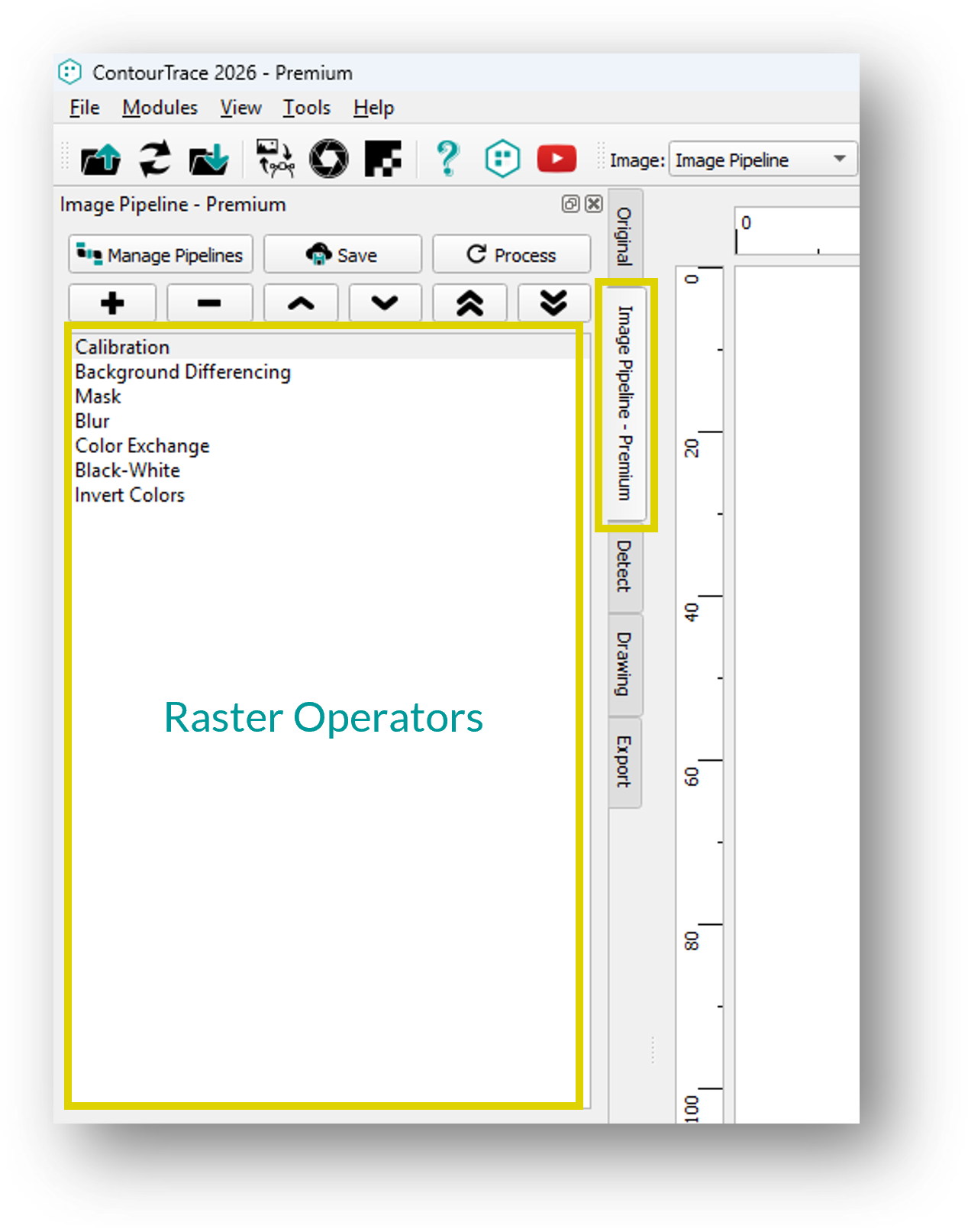
Operadores Raster
Os operadores Raster lidam com a modificação da imagem de entrada (gráfico Raster) e fornecem múltiplas funcionalidades para melhorar ou adaptar o seguinte processo de transformação vetorial.
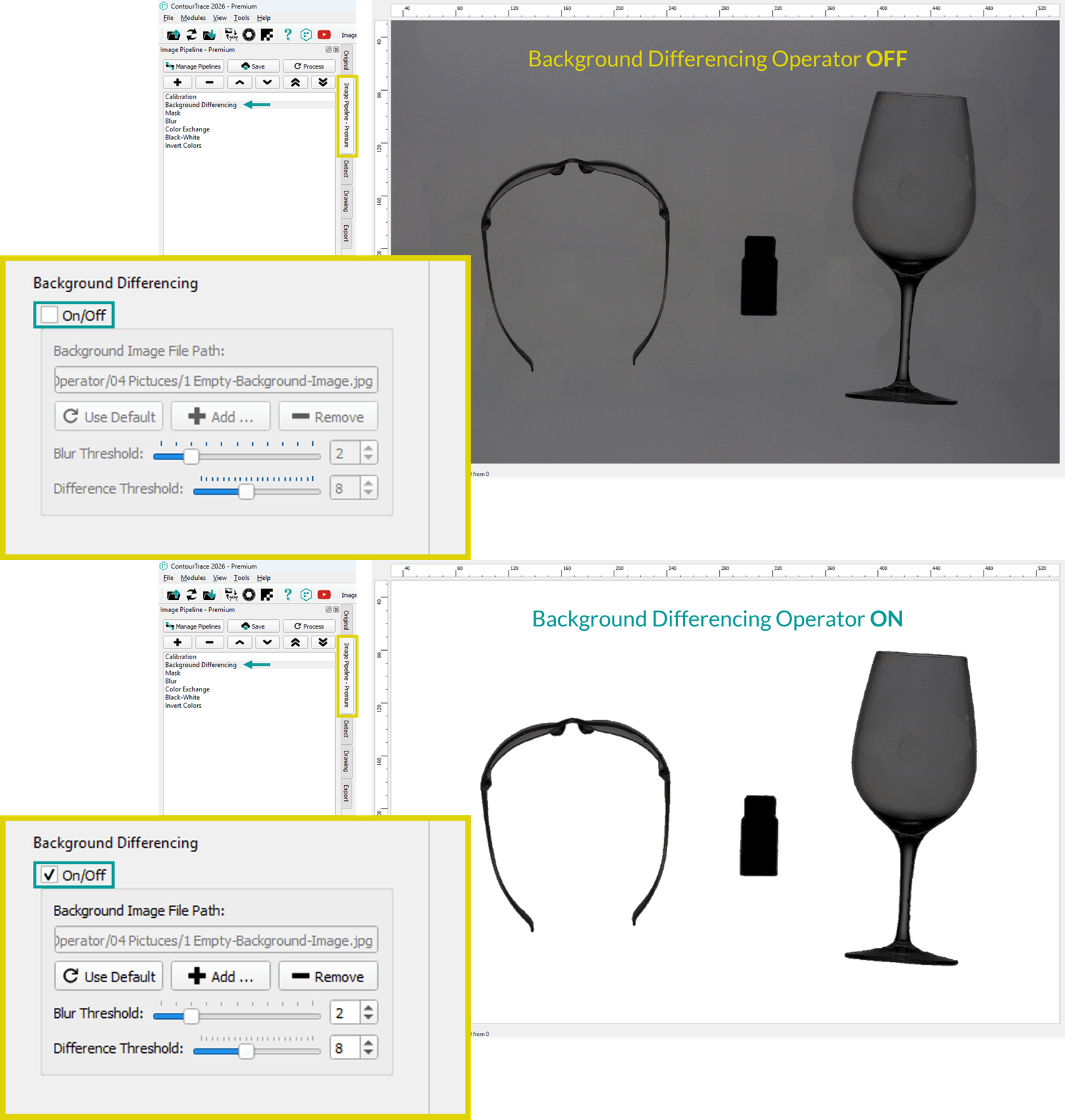
Operador de diferenciação de fundo
O Operador de Diferenciação de Fundo foi projetado para melhorar a detecção de bordas ao escanear objetos transparentes ou altamente reflexivos, como vidro, plástico ou componentes cromados.
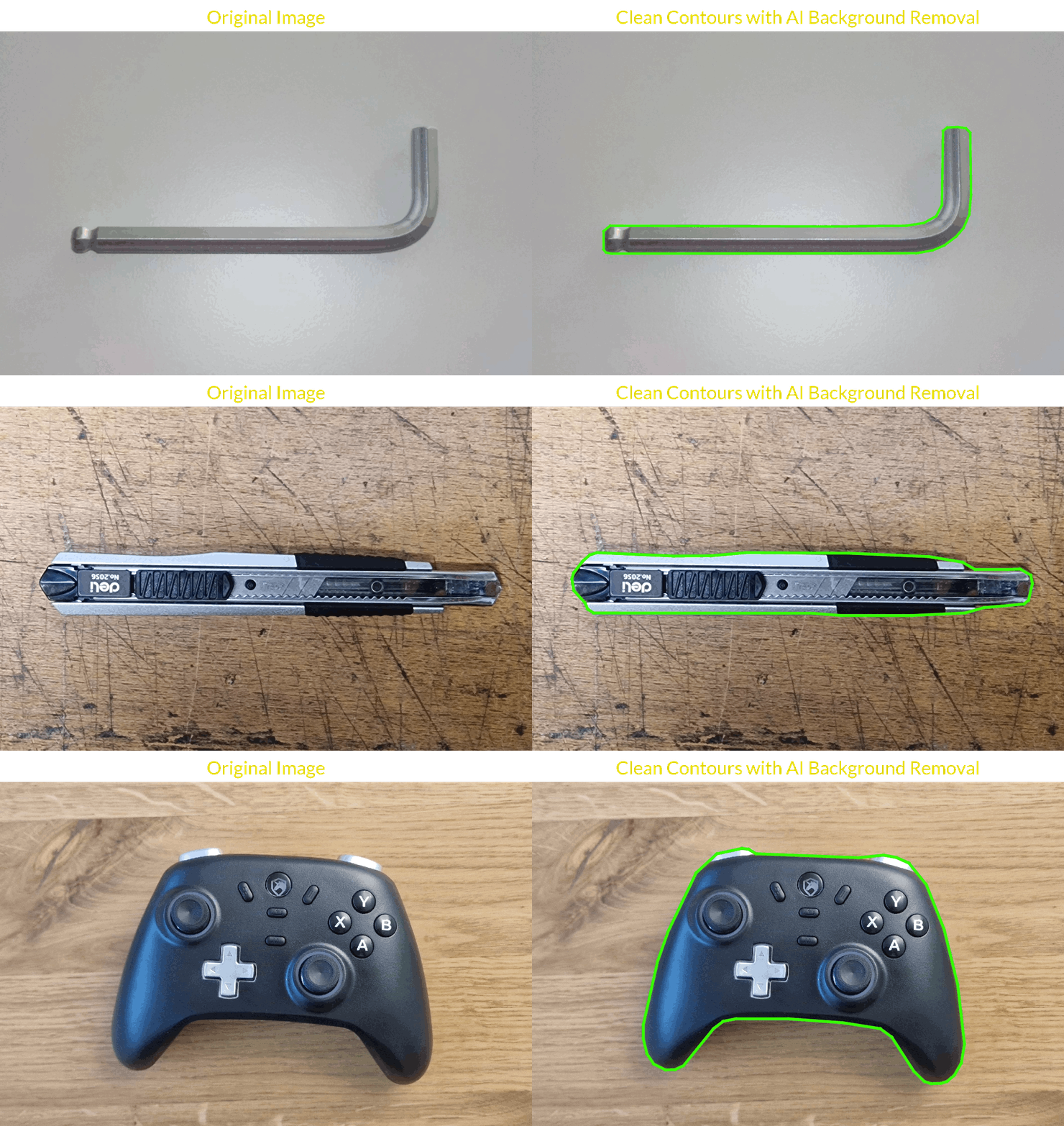
Operador de remoção de antecedentes de IA
O operador de remoção de plano de fundo AI usa uma rede neural para detectar e separar automaticamente o objeto em primeiro plano do plano de fundo. Ele reduz as sombras, o brilho e o ruído de fundo para melhorar a qualidade da imagem para a extração de contorno.
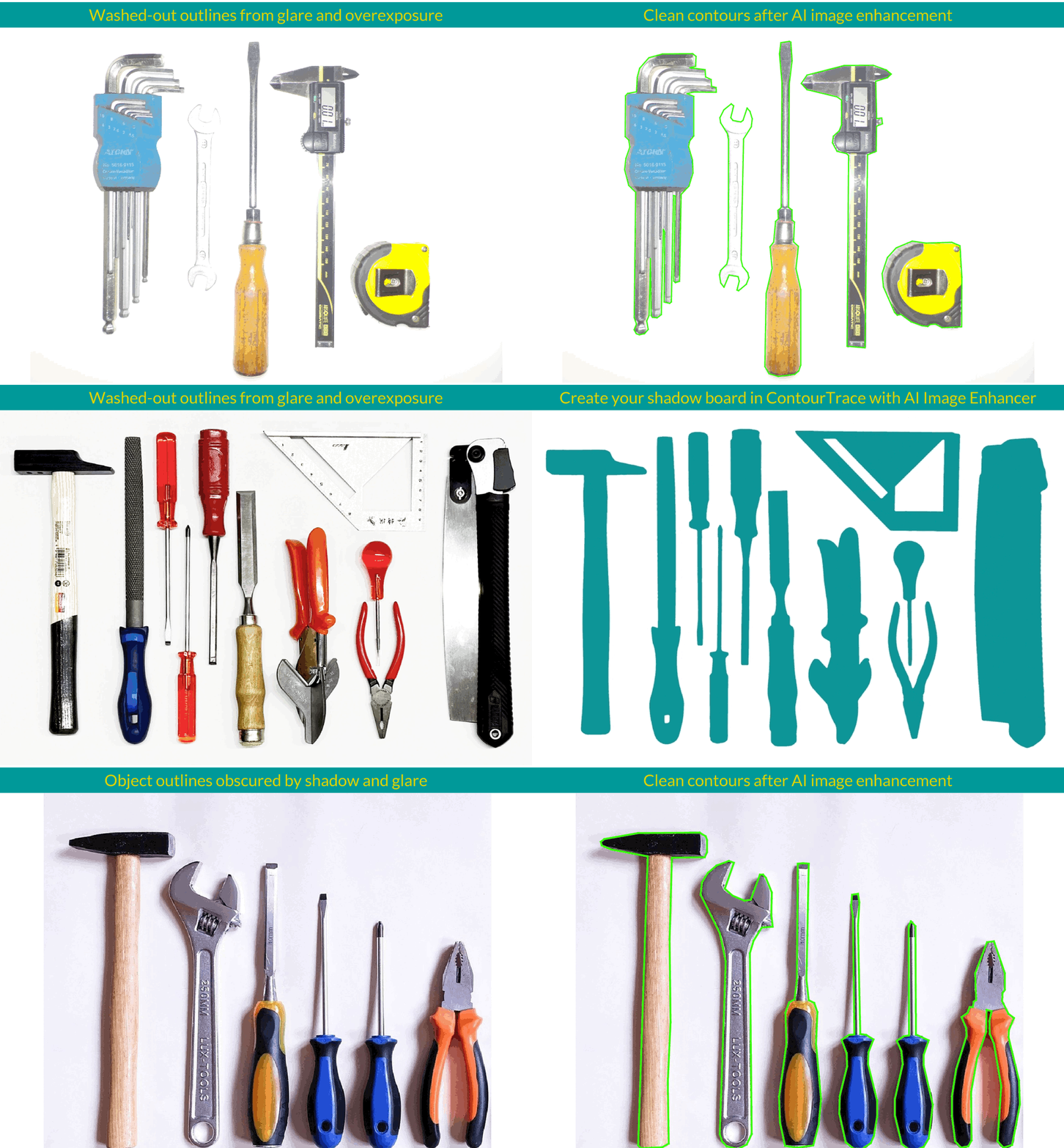
Aprimorador de imagem com IA - Operador do Google Gemini
Um operador de IA semelhante ao Operador de remoção de plano de fundo de IA, mas que requer uma chave de API do Google Gemini e incorre em um custo por geração, dependendo do modelo: aproximadamente US$ 0,10 para o Gemini 3.1 Flash Image Preview e US$ 0,15 para o Gemini 3 Pro Image. Ao contrário do AI Background Removal Operator gratuito, ele aprimora as imagens com base em sua solicitação, removendo reflexos e sombras, suavizando bordas e melhorando a extração de contornos, mesmo em imagens problemáticas ou de baixa qualidade.
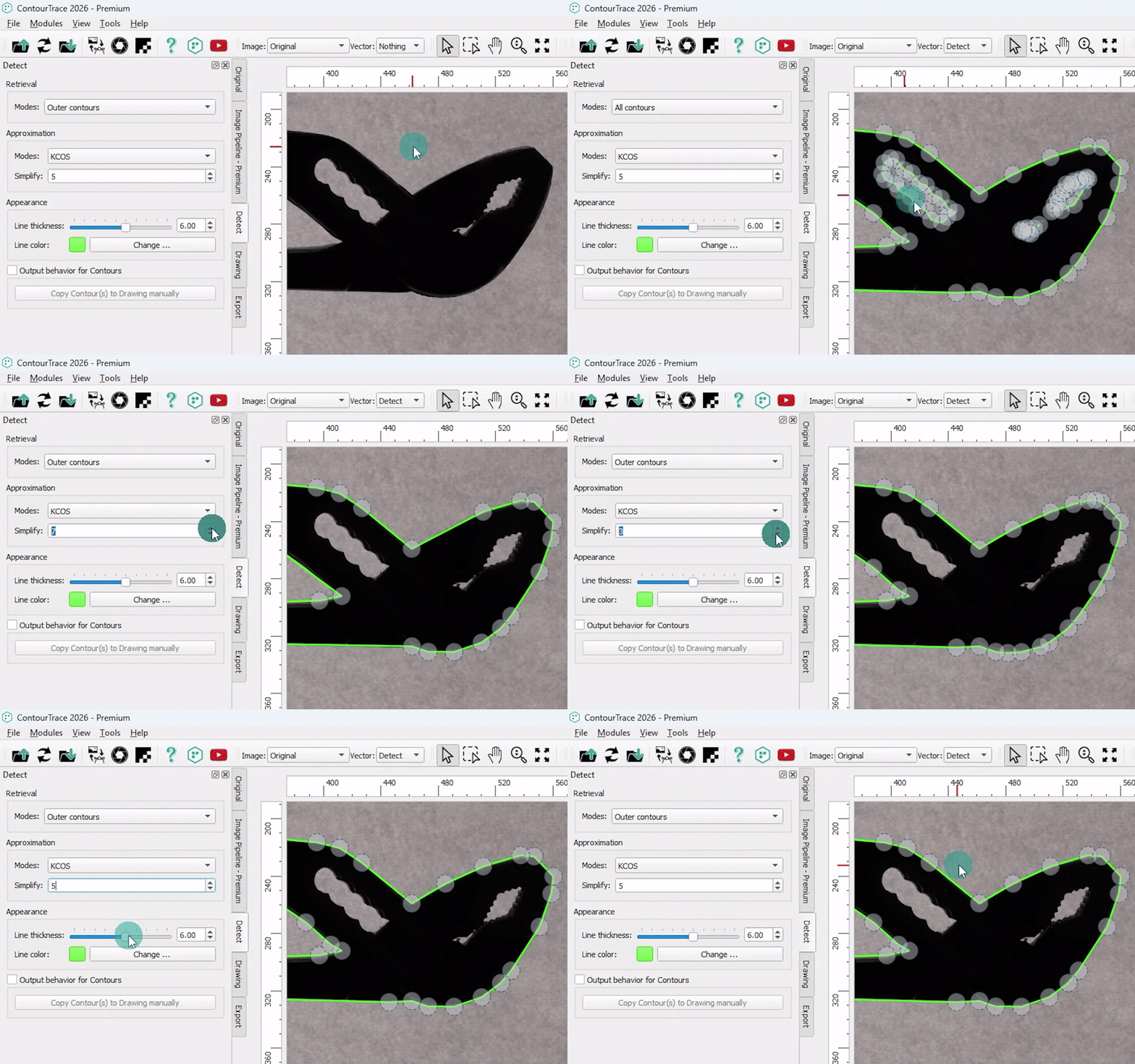
Operador de detecção
O Operador de detecção é um operador de transformação que converte imagens rasterizadas em gráficos vetoriais por meio da detecção de contornos. Dependendo do modo selecionado, ele pode extrair todos os contornos ou somente o contorno externo.
Operadores Vetoriais
Os operadores vetoriais modificam e refinam os gráficos vetoriais gerados após a detecção do contorno. Eles oferecem uma série de ferramentas para ajustar, otimizar e adaptar os contornos para atender a requisitos específicos de aplicativos e exportação.
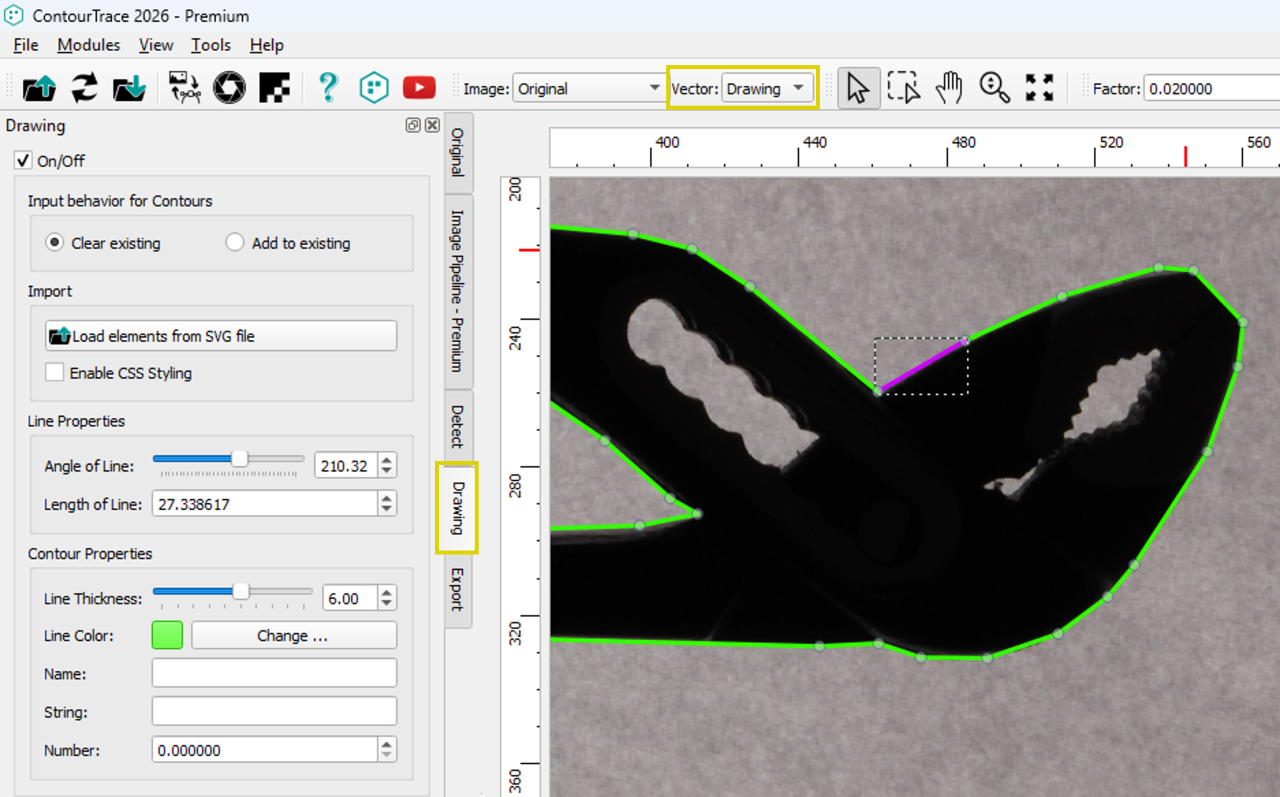
Operador de desenho
O Drawing Operator permite a edição precisa e o refinamento de contornos vetoriais diretamente no ContourTrace, fornecendo ferramentas poderosas para a manipulação avançada de contornos e garantindo resultados limpos, precisos e prontos para exportação, sem a necessidade de um software CAD externo.
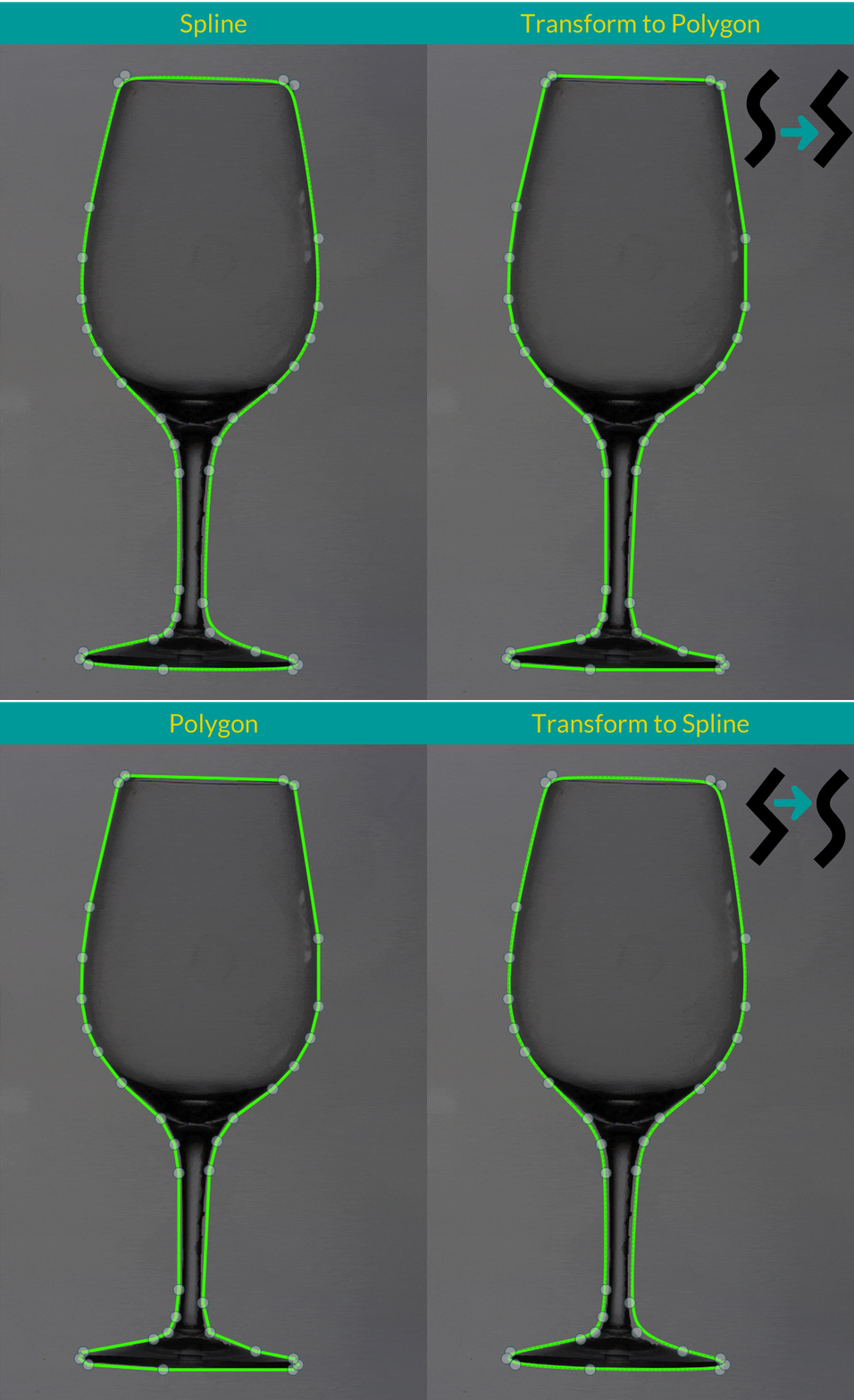
Transformar em polígono / spline
Converta contornos selecionados entre polígono e spline, permitindo um controle flexível sobre a geometria e a curvatura do contorno com base nas necessidades da sua aplicação.
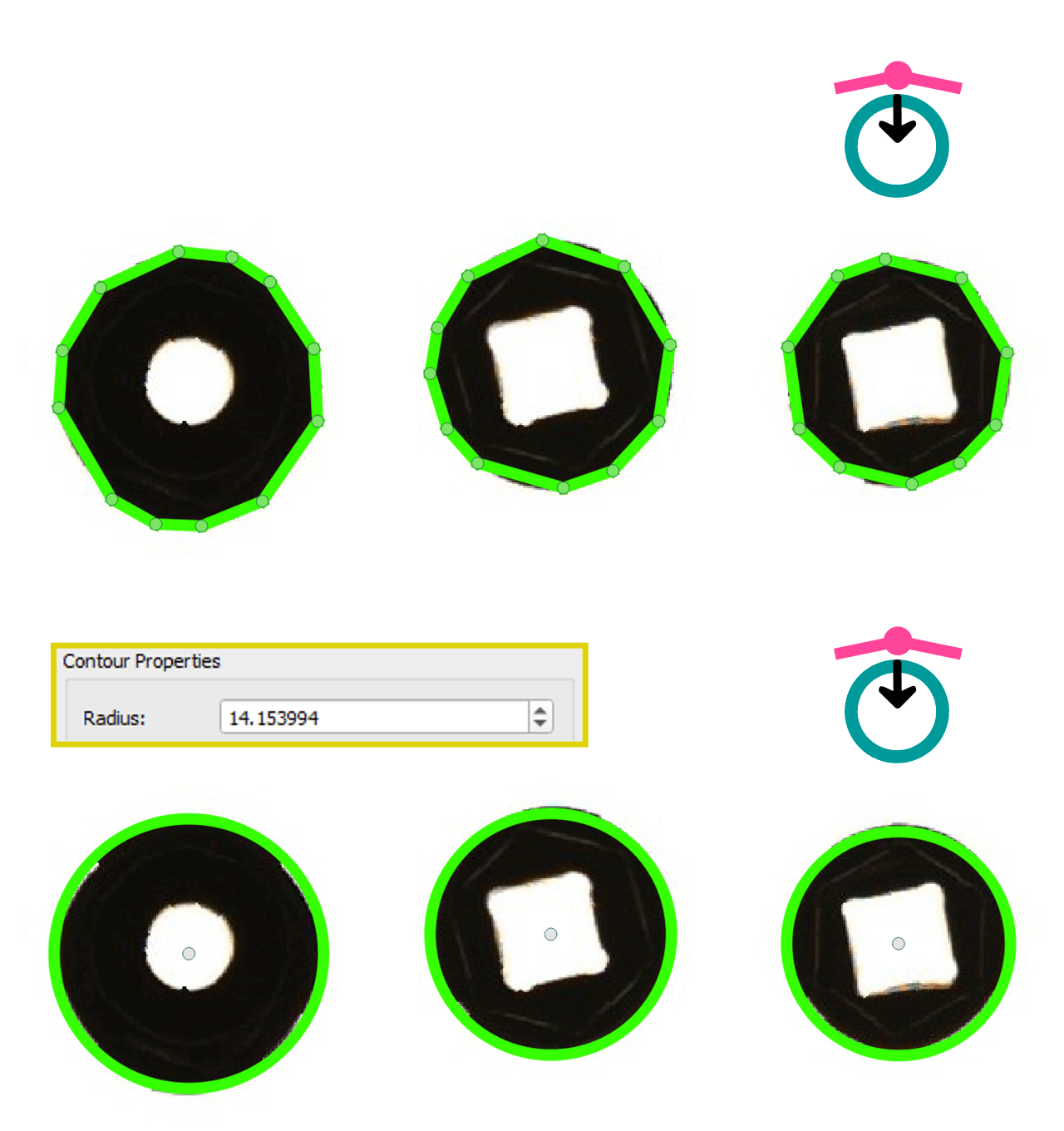
Transformar polígono em círculo
Converte contornos de polígonos selecionados em círculos perfeitos, ideais para ferramentas e objetos redondos, com raio ajustável para controle preciso.
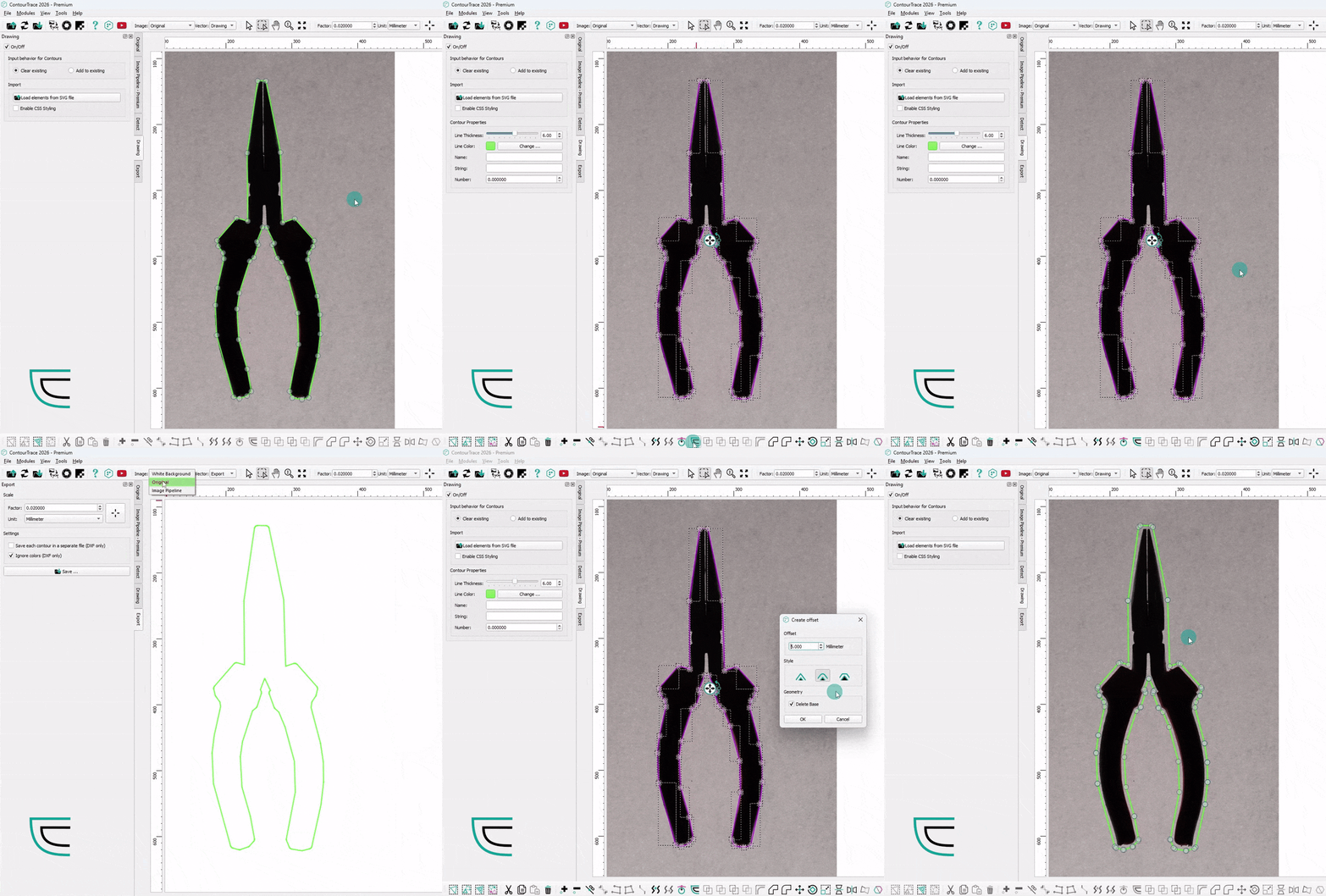
Contorno de deslocamento
Gera deslocamentos de contornos selecionados por uma distância e um estilo de canto definidos, com suporte para o processamento de vários contornos simultaneamente.
Ferramentas para operações booleanas
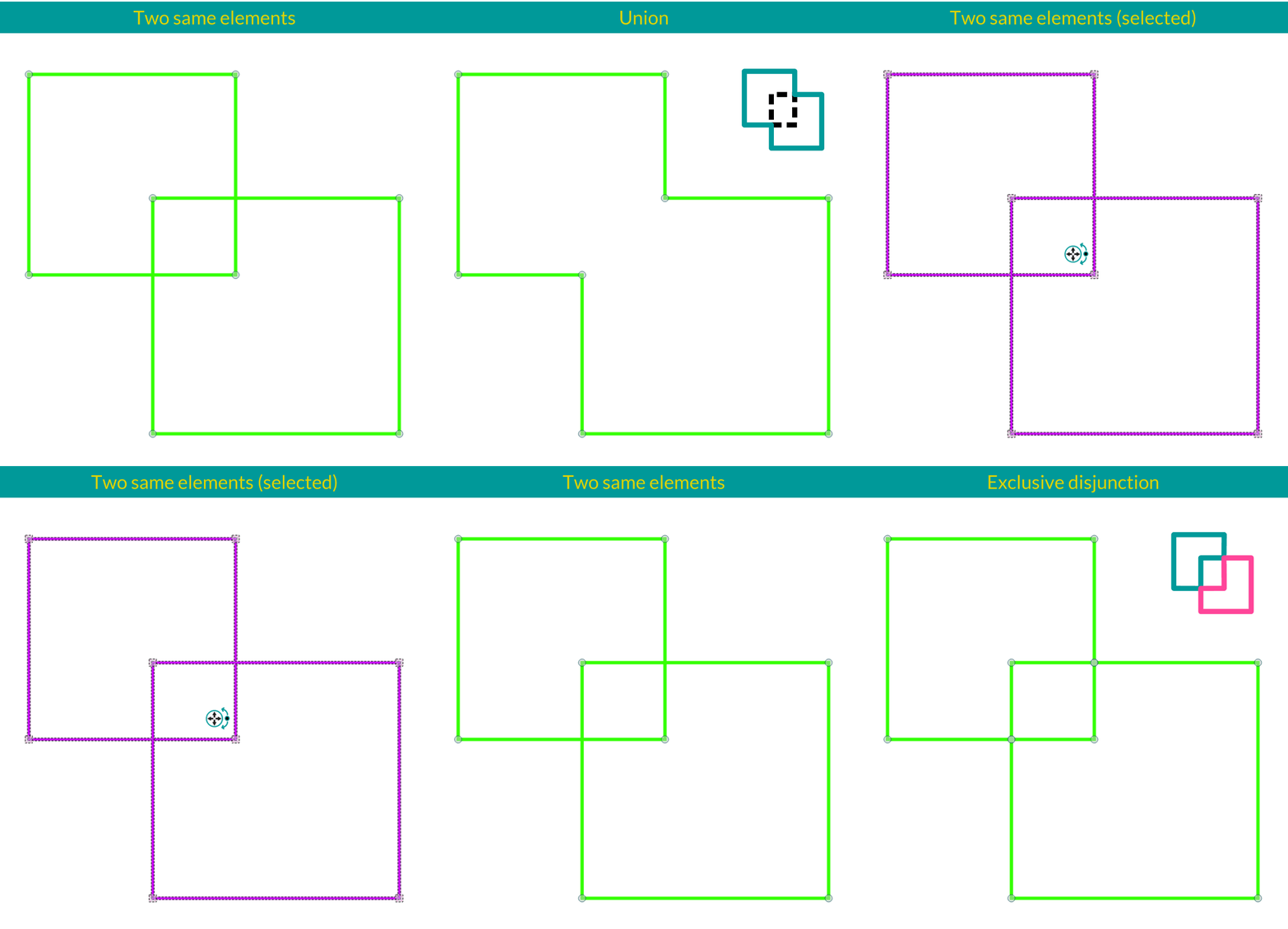
União de elementos: Combina dois ou mais contornos sobrepostos em um único polígono ou spline. Difference of Elements (Diferença de elementos): Subtrai os contornos do objeto selecionado do primeiro contorno selecionado (recorte), mantendo apenas as áreas não sobrepostas. Intersection of Elements (Intersecção de elementos): Cria um novo contorno a partir da região de sobreposição compartilhada pelo contorno de recorte e os contornos do tema selecionado. Disjunção exclusiva de elementos: Gera contornos a partir de áreas cobertas pelos contornos de recorte ou de tema, excluindo as regiões sobrepostas.
Chanfro e filete
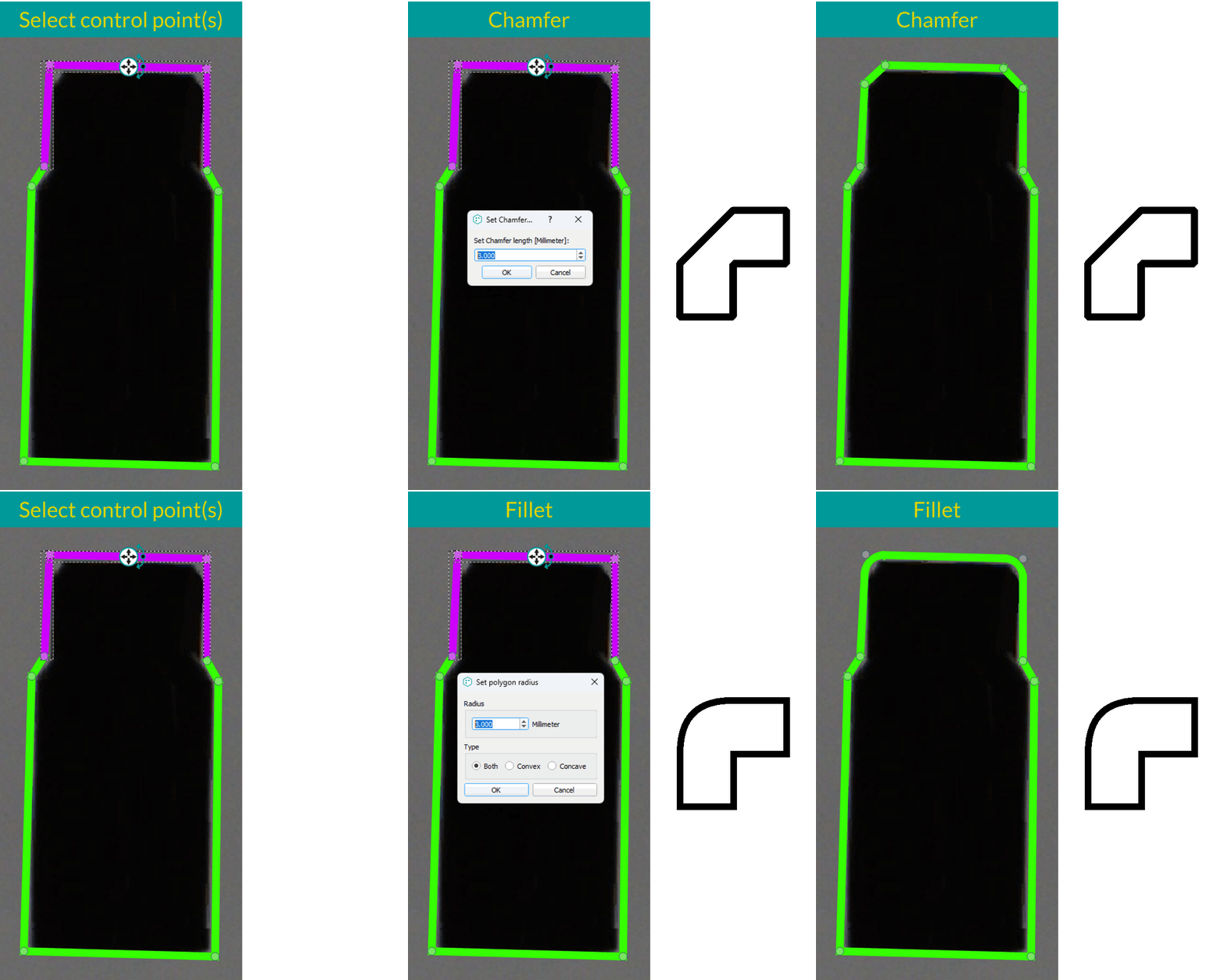
Aplique chanfros com um comprimento definido ou filetes com um raio especificado a pontos ou segmentos de linha selecionados. Vários elementos podem ser processados simultaneamente para um refinamento eficiente do contorno.
Contorno do espelho na horizontal
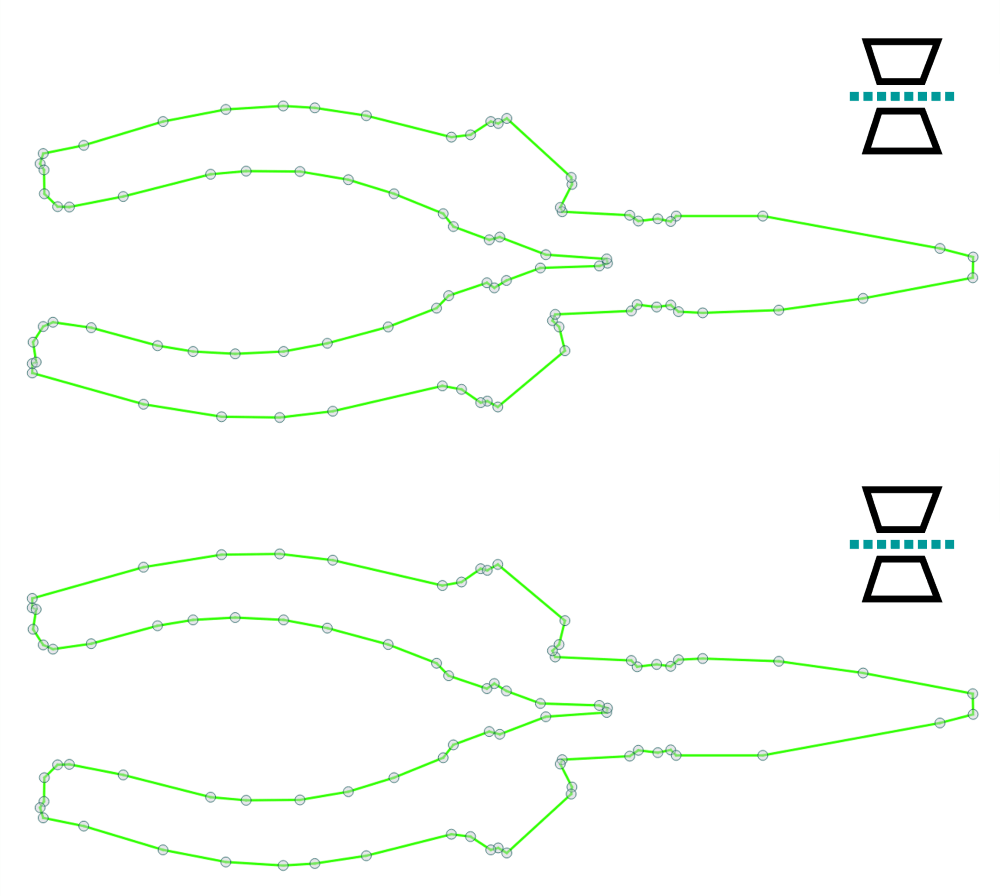
Espelha os contornos selecionados em torno do eixo horizontal. Para uma única seleção, o contorno é espelhado em torno de seu próprio centro; para várias seleções, o eixo do espelho é definido pelo centro combinado de todos os elementos selecionados.
Contorno do espelho na vertical
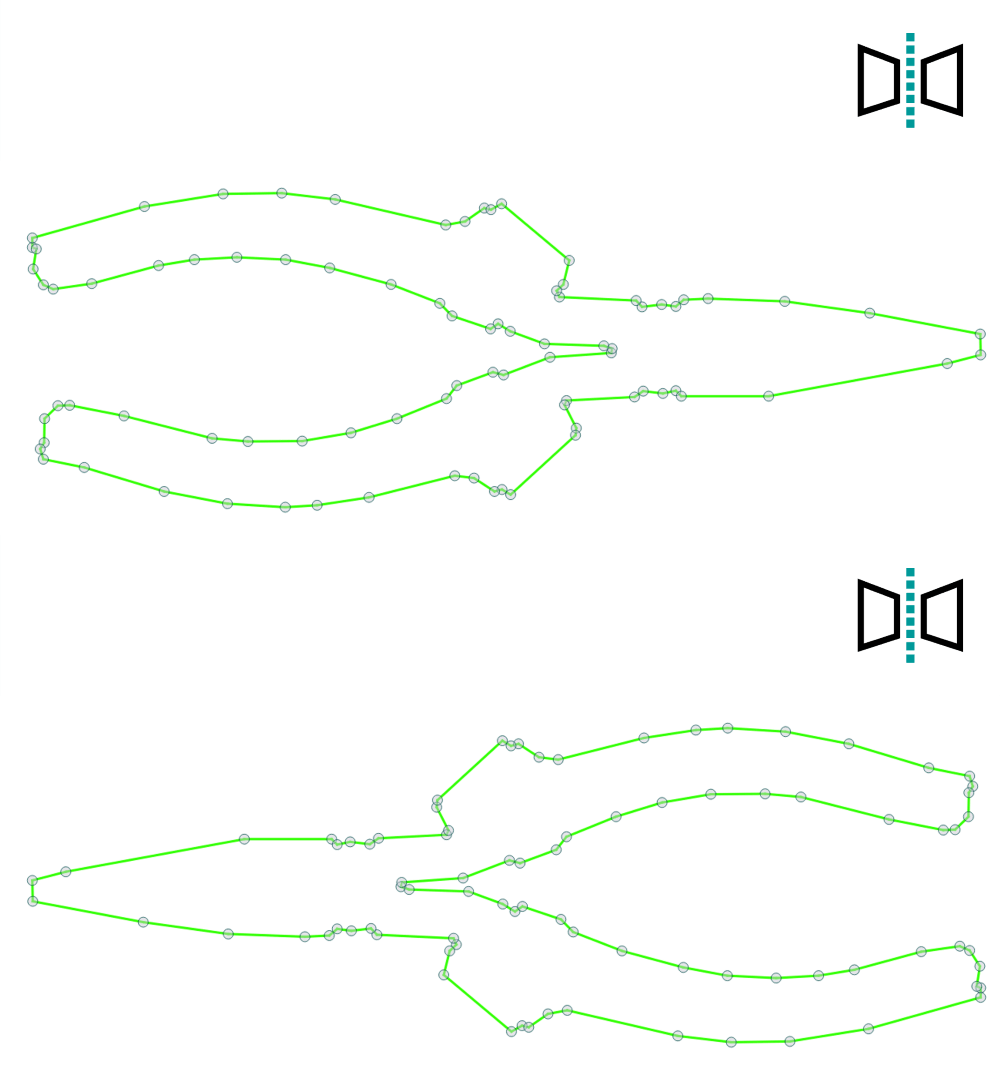
Espelha os contornos selecionados em torno do eixo vertical. Para uma única seleção, o contorno é espelhado em torno de seu próprio centro; para várias seleções, o eixo do espelho é definido pelo centro combinado de todos os elementos selecionados.
Espelhar o contorno sobre a linha selecionada
Espelha o contorno selecionado usando a linha escolhida como o eixo do espelho, refletindo os pontos de contorno em torno dessa linha.
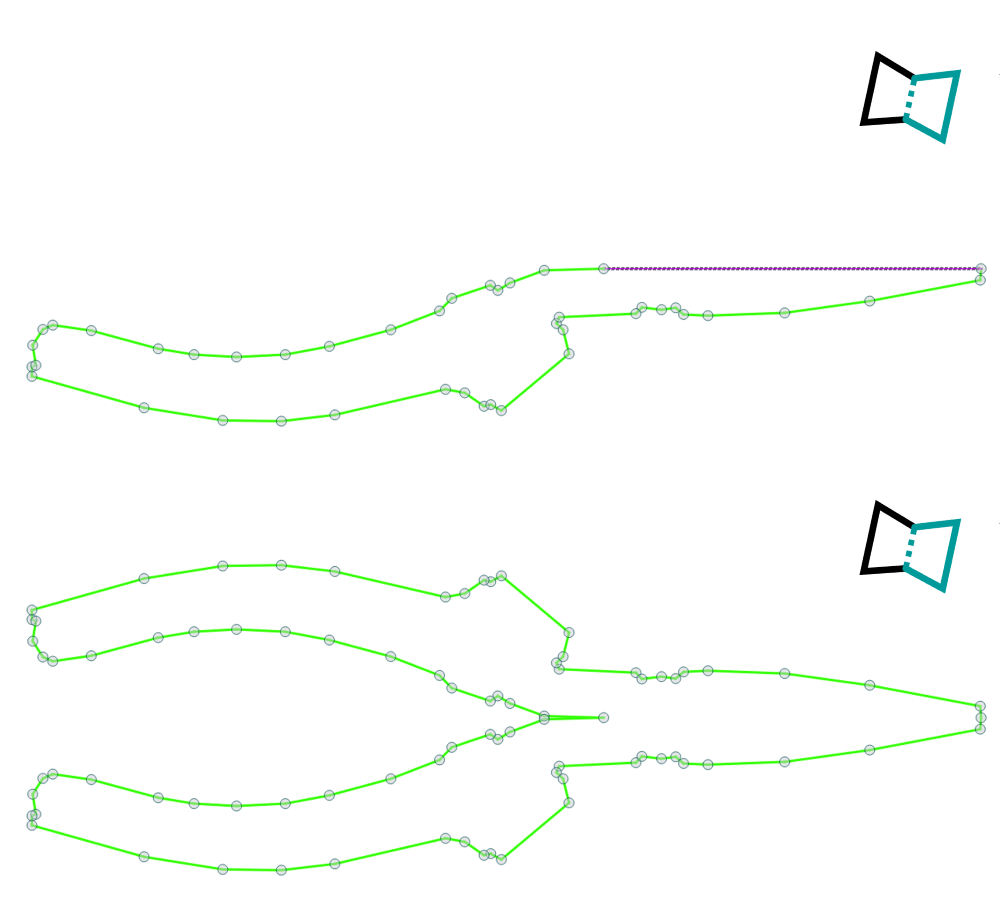
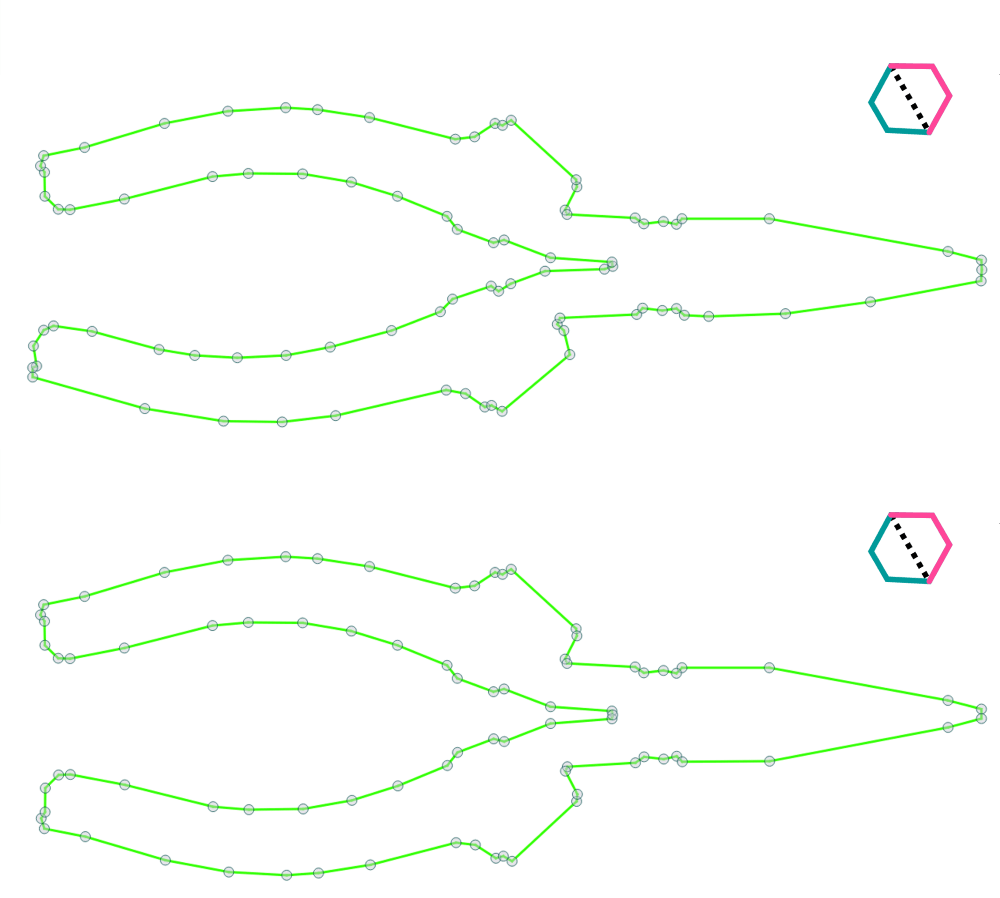
Criar contornos simétricos
Torna simétricos os elementos de contorno de polígono ou spline selecionados.
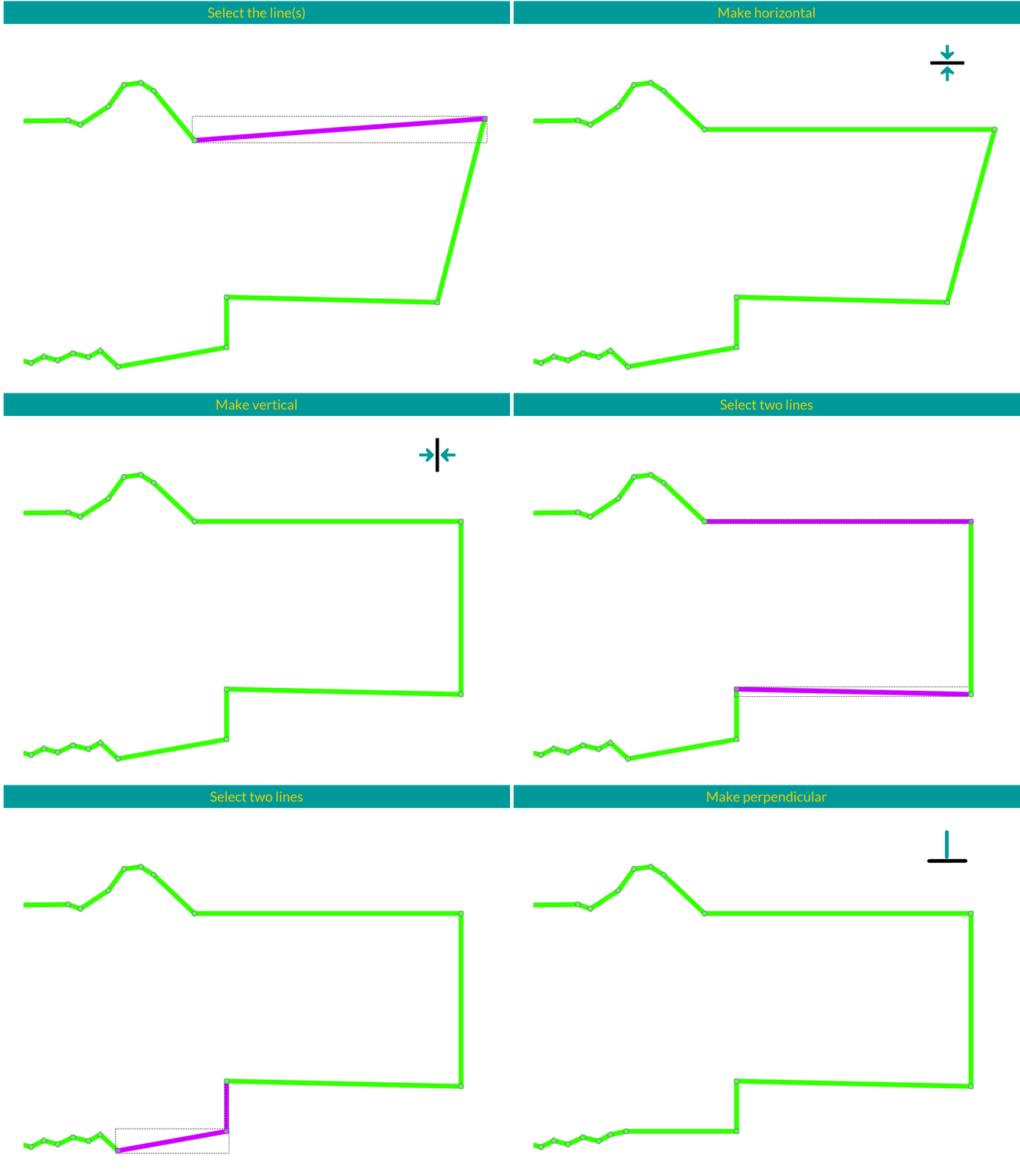
Ferramentas de alinhamento para linhas
Alinhar à horizontal: Alinha os pontos selecionados ao longo de uma linha horizontal centralizada entre os pontos mais alto e mais baixo da seleção. Alinhar à vertical: Alinha os pontos selecionados ao longo de uma linha vertical centralizada entre os pontos mais à esquerda e mais à direita da seleção. Alinhar paralelo: Alinha a segunda linha de contorno selecionada paralelamente à primeira linha selecionada. Alinhar perpendicular: Alinha a segunda linha de contorno selecionada para ser perpendicular à primeira linha selecionada.
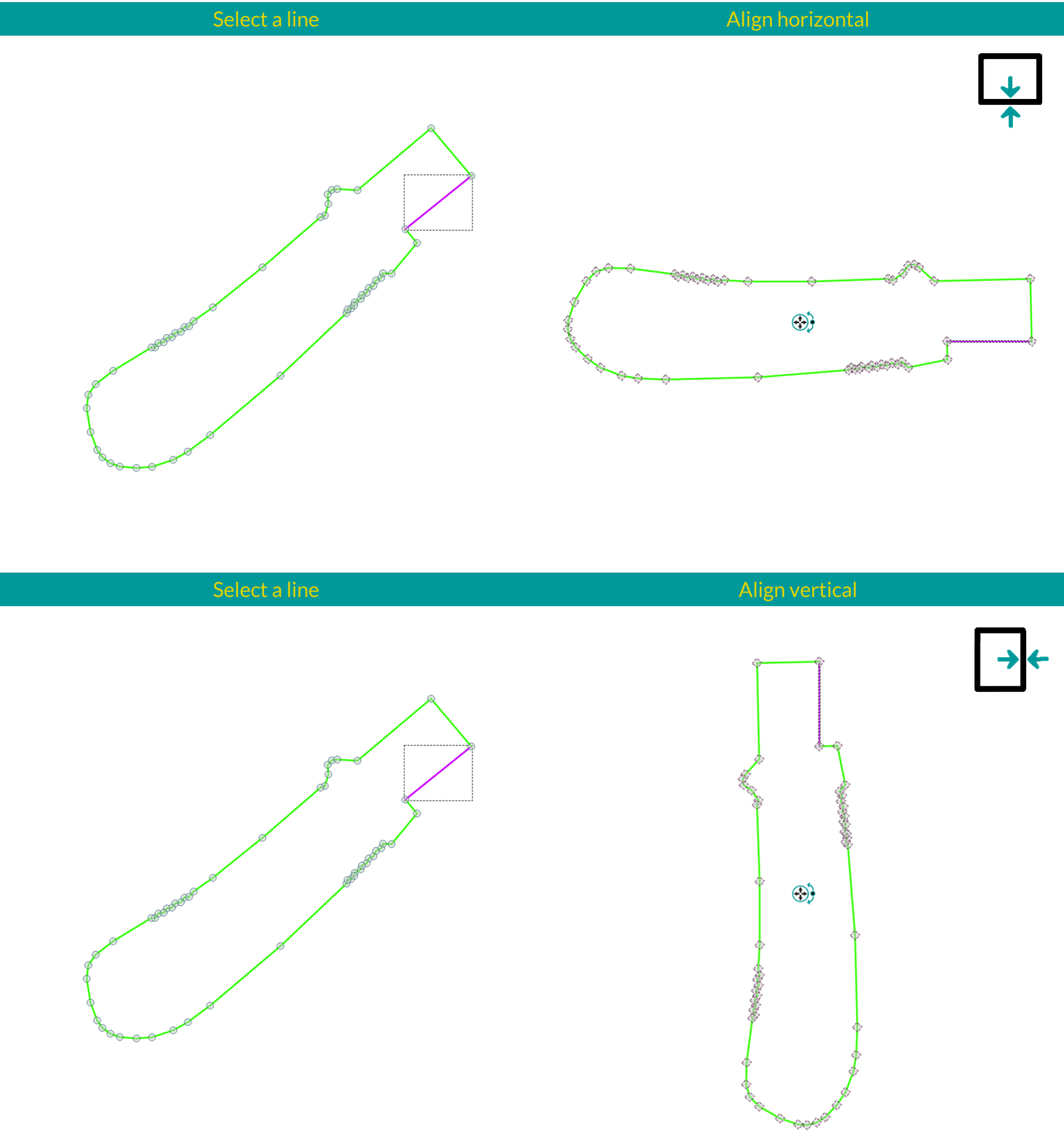
Ferramentas de alinhamento para elementos
Alinhar elemento horizontalmente: Gira o elemento selecionado para que a linha escolhida fique na horizontal. Alinhar elemento verticalmente: Gira o elemento selecionado de modo que a linha escolhida fique na vertical.
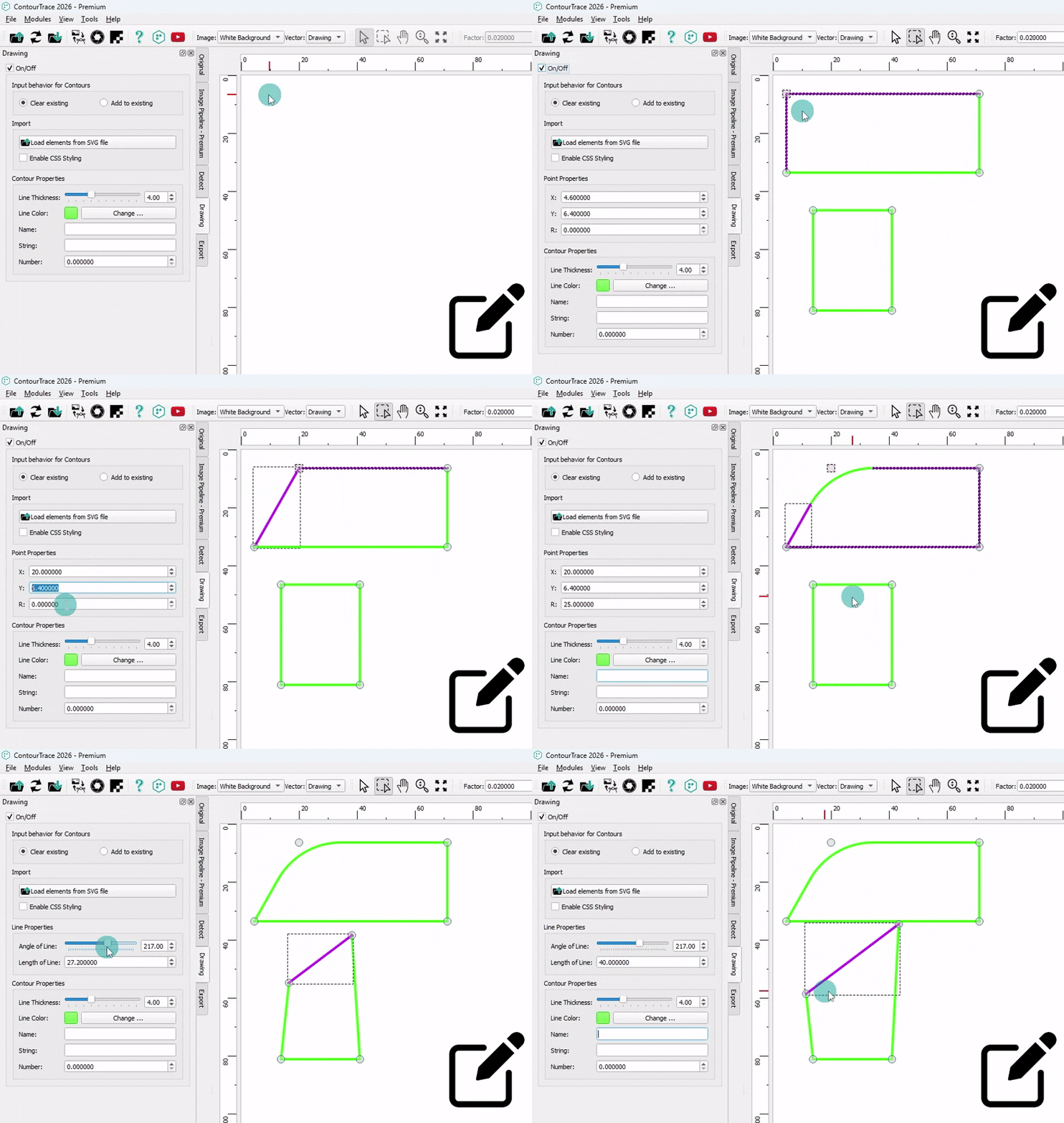
Desenhar polígonos retangulares
Crie contornos de polígonos retangulares diretamente no ContourTrace, com personalização total da forma - ajuste as posições dos pontos, os comprimentos e os ângulos das linhas e adicione filetes conforme necessário.
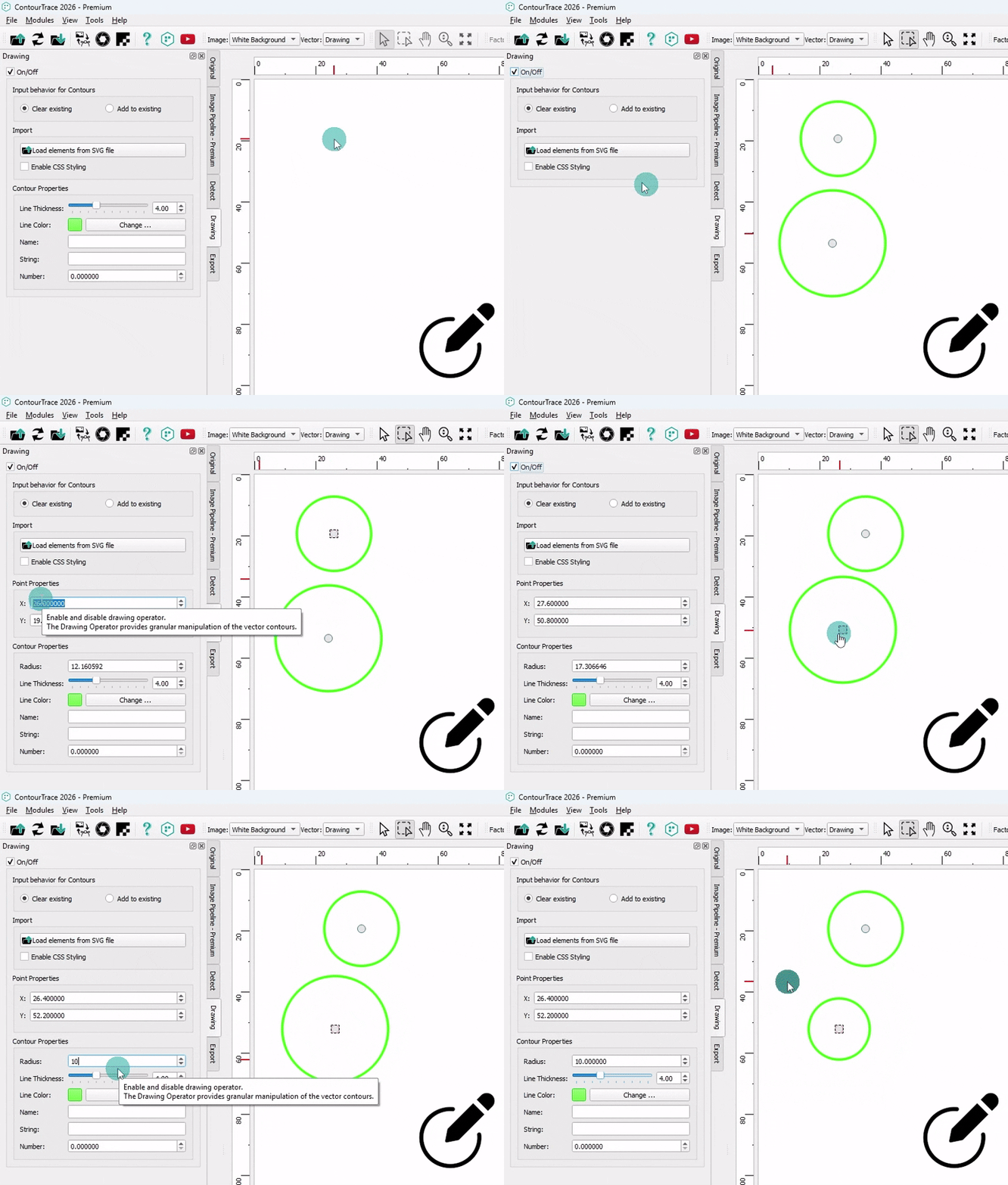
Desenhar círculos
Crie elementos de contorno circular diretamente no ContourTrace, com controle total sobre o raio e a posição.
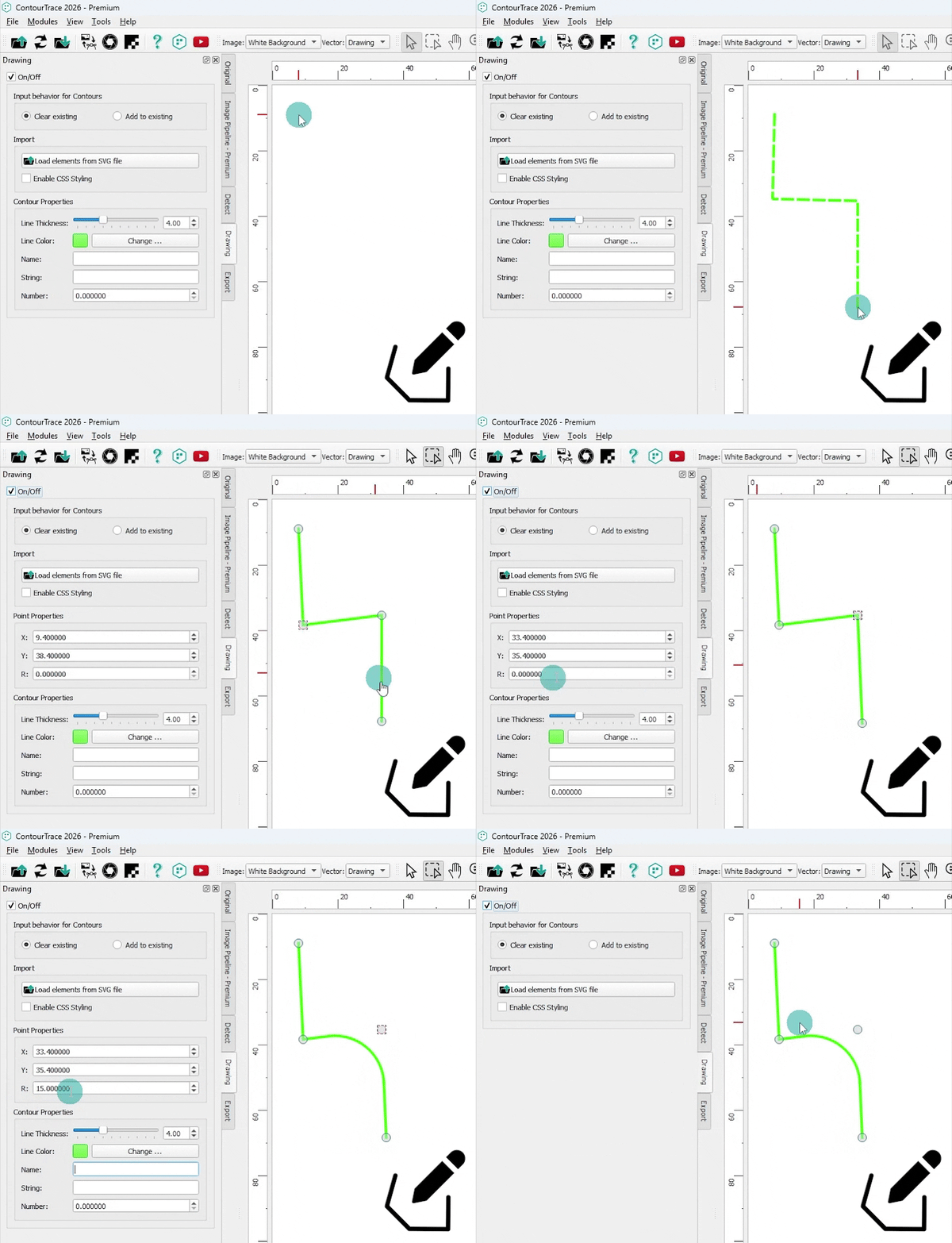
Desenhar polígonos abertos
Crie contornos de polígonos abertos diretamente no ContourTrace, com personalização total da forma - ajuste as posições dos pontos, os comprimentos e os ângulos das linhas e adicione filetes conforme necessário.
Operador de exportação
O Export Operator gerencia o salvamento e a exportação de gráficos do ContourTrace, oferecendo suporte a vários formatos de saída para imagens, dados vetoriais e fluxos de trabalho de CAD. Formatos de imagem: JPG, JPEG, PNG, BMP Formatos vetoriais: DXF, SVG Formato de macro: Macro do FreeCAD (FCMacro)
Exportar contornos como macro do FreeCAD
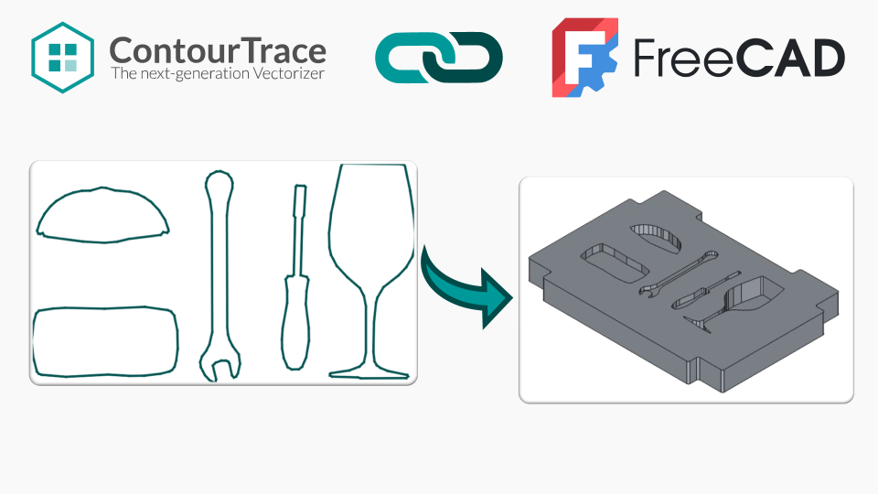
Exporte contornos do ContourTrace como uma macro do FreeCAD que pode ser carregada e executada no FreeCAD para gerar automaticamente modelos 3D a partir dos contornos extraídos.
Metadados com exportação DXF
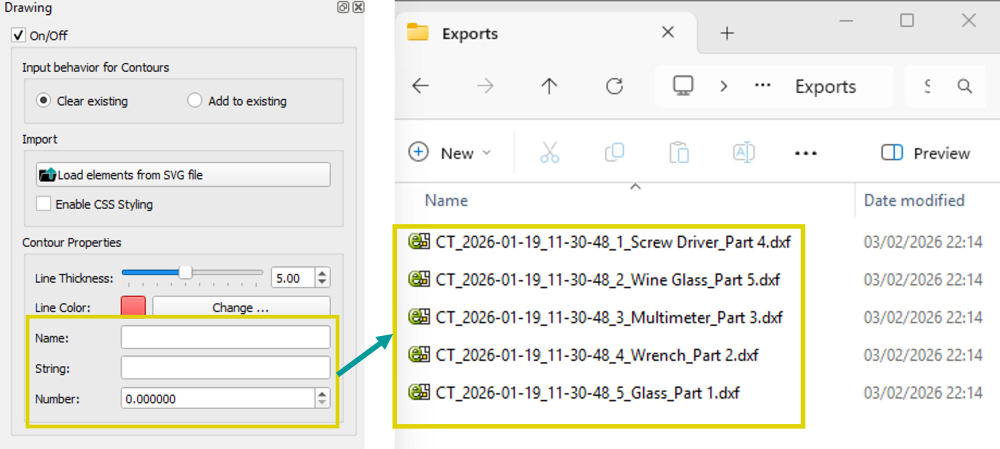
Atribua nomes, profundidade e metadados personalizados a cada contorno e exporte-os com arquivos DXF. Os contornos podem ser salvos como arquivos separados com seus metadados associados, permitindo fluxos de trabalho de CAD mais suaves e integração confiável com ferramentas posteriores, incluindo macros do FreeCAD.
Exportar metadados com a macro do FreeCAD
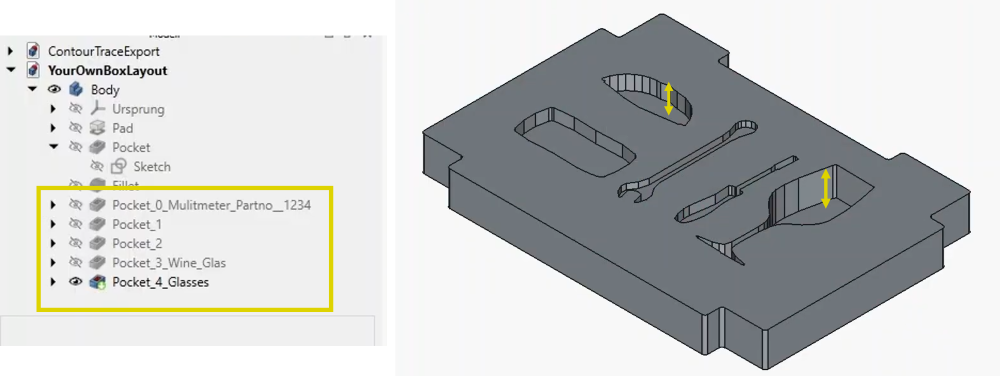
Exporta metadados de contorno diretamente para o FreeCAD, exibindo nomes e cadeias de contorno na Feature Tree. Os valores de profundidade definidos são aplicados automaticamente, permitindo operações 3D precisas e consistentes com base nos metadados atribuídos.
Módulos adicionais
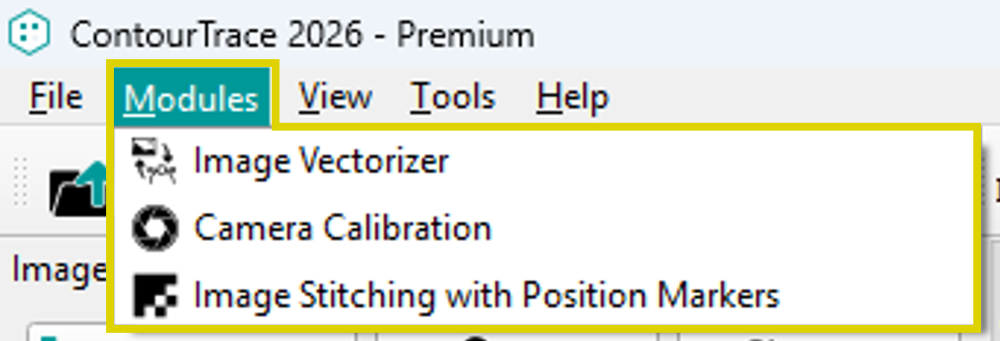
Os módulos definem funcionalidades adicionais que não são parte natural do próprio fluxo de trabalho, incluindo os operadores. Eles fornecem outras configurações para aumentar a precisão do processamento gráfico.
Calibração da câmera
A fim de obter os contornos mais exatos possíveis de suas próprias gravações de imagem, a câmera digital utilizada pode ser calibrada. Isto pode reduzir significativamente a distorção tangencial e radial da imagem. Assim, os contornos fiéis à produção podem ser obtidos com a ContourTrace.
Costura de imagens com marcadores de posição
A costura de imagens com marcadores de posição pode ser usada para corrigir ou reduzir bastante as distorções de perspectiva em uma imagem. Isso minimiza os erros na forma do contorno que podem ser atribuídos à distorção de perspectiva.
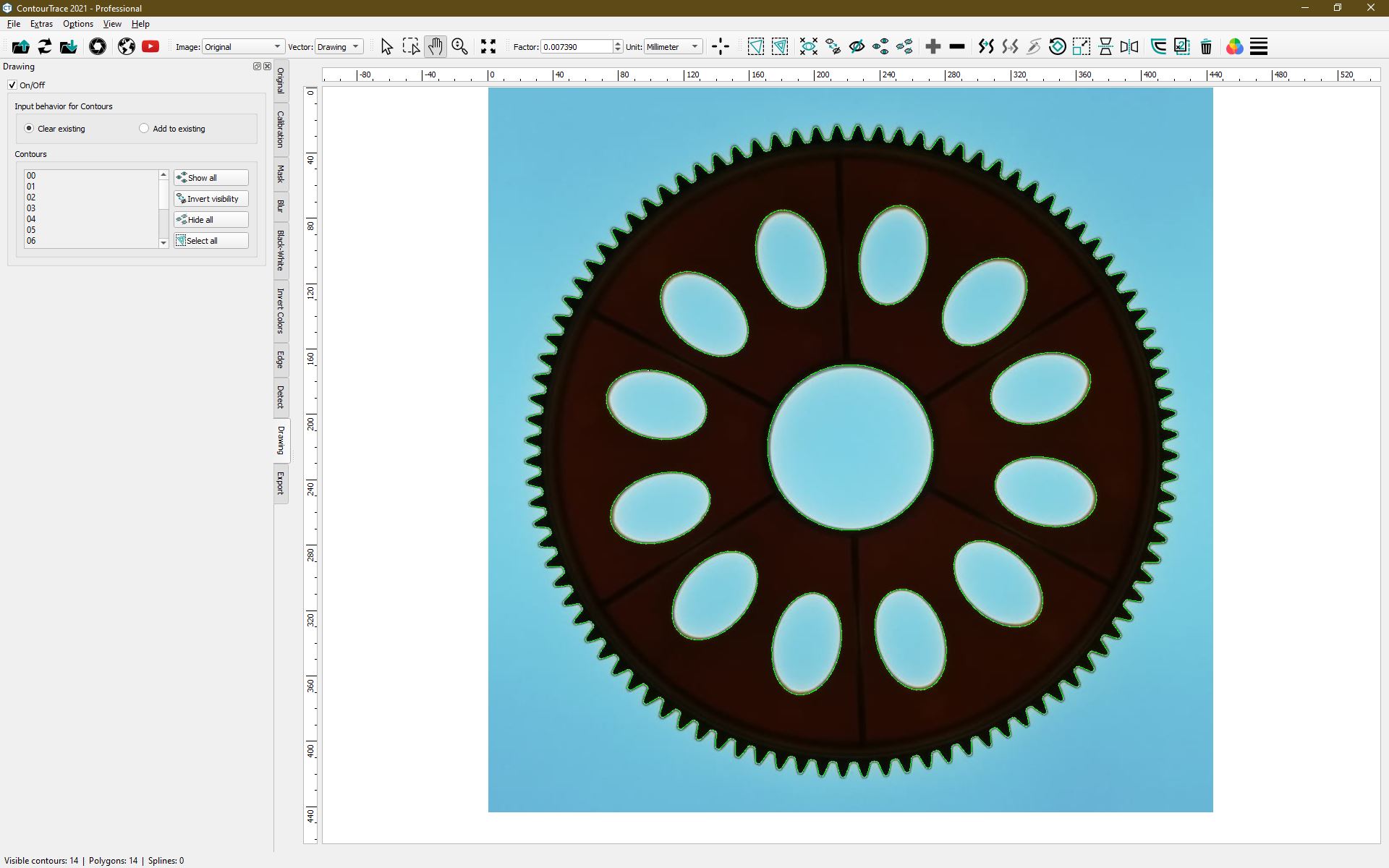
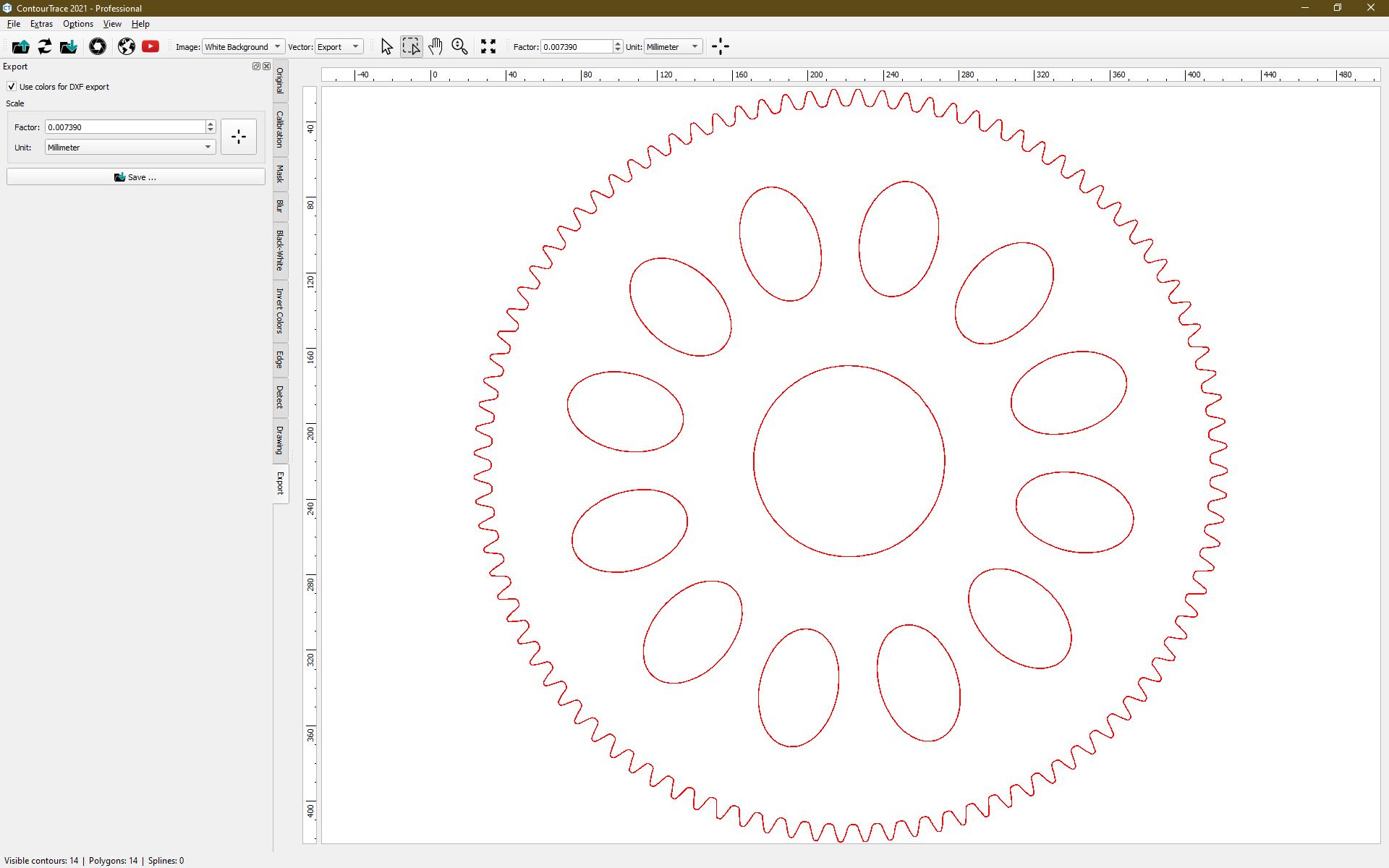
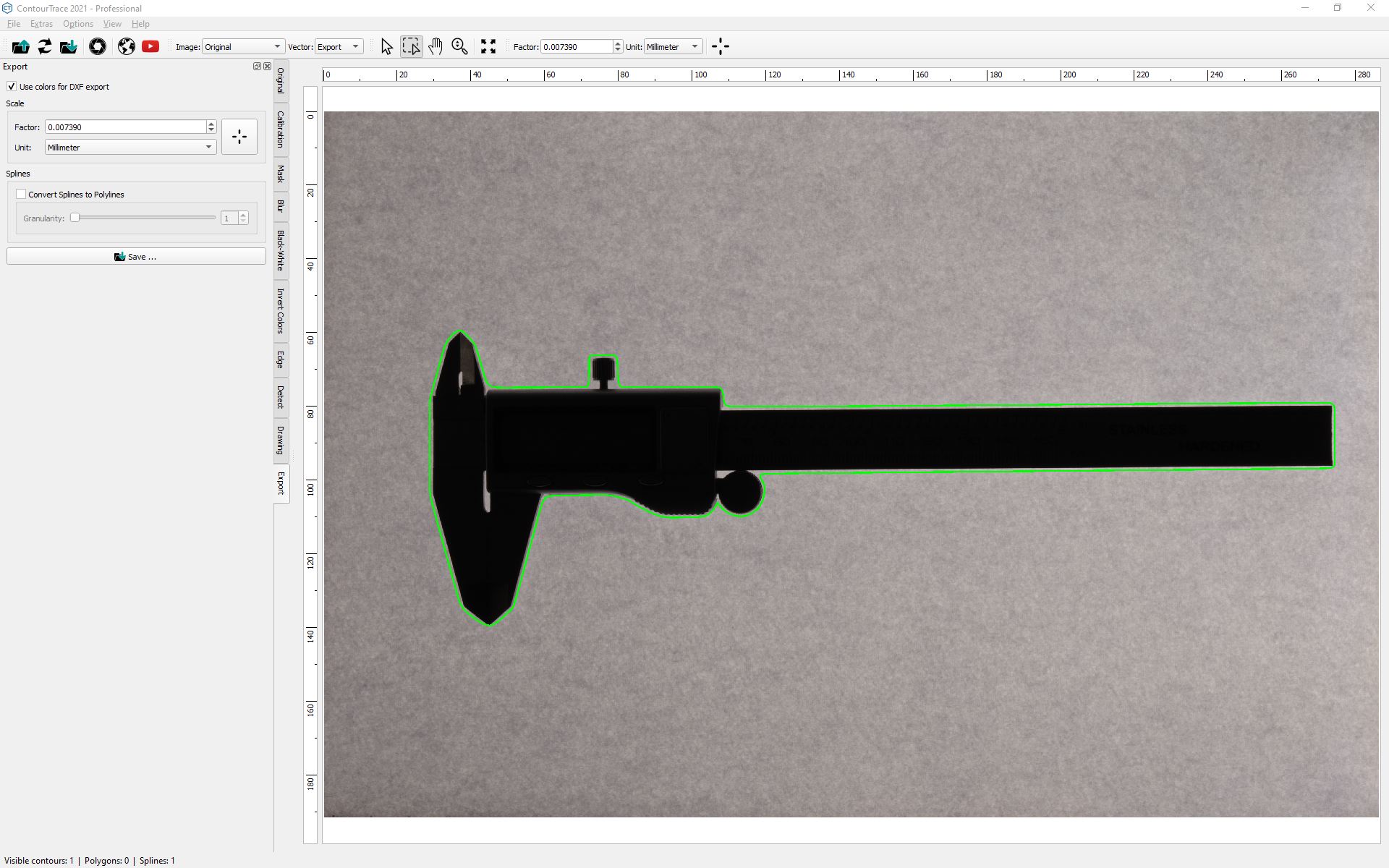
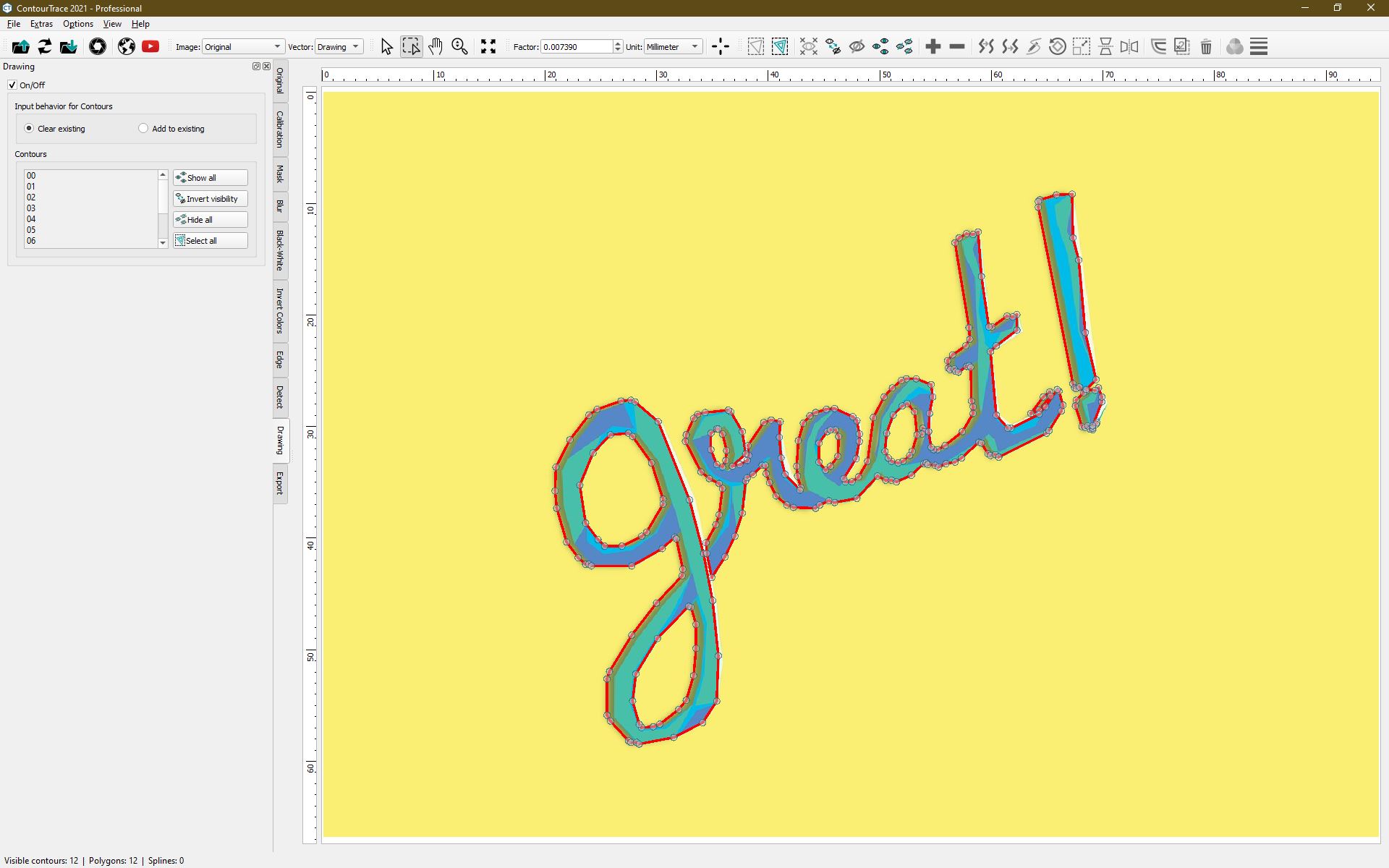
Casos de uso e screenshots
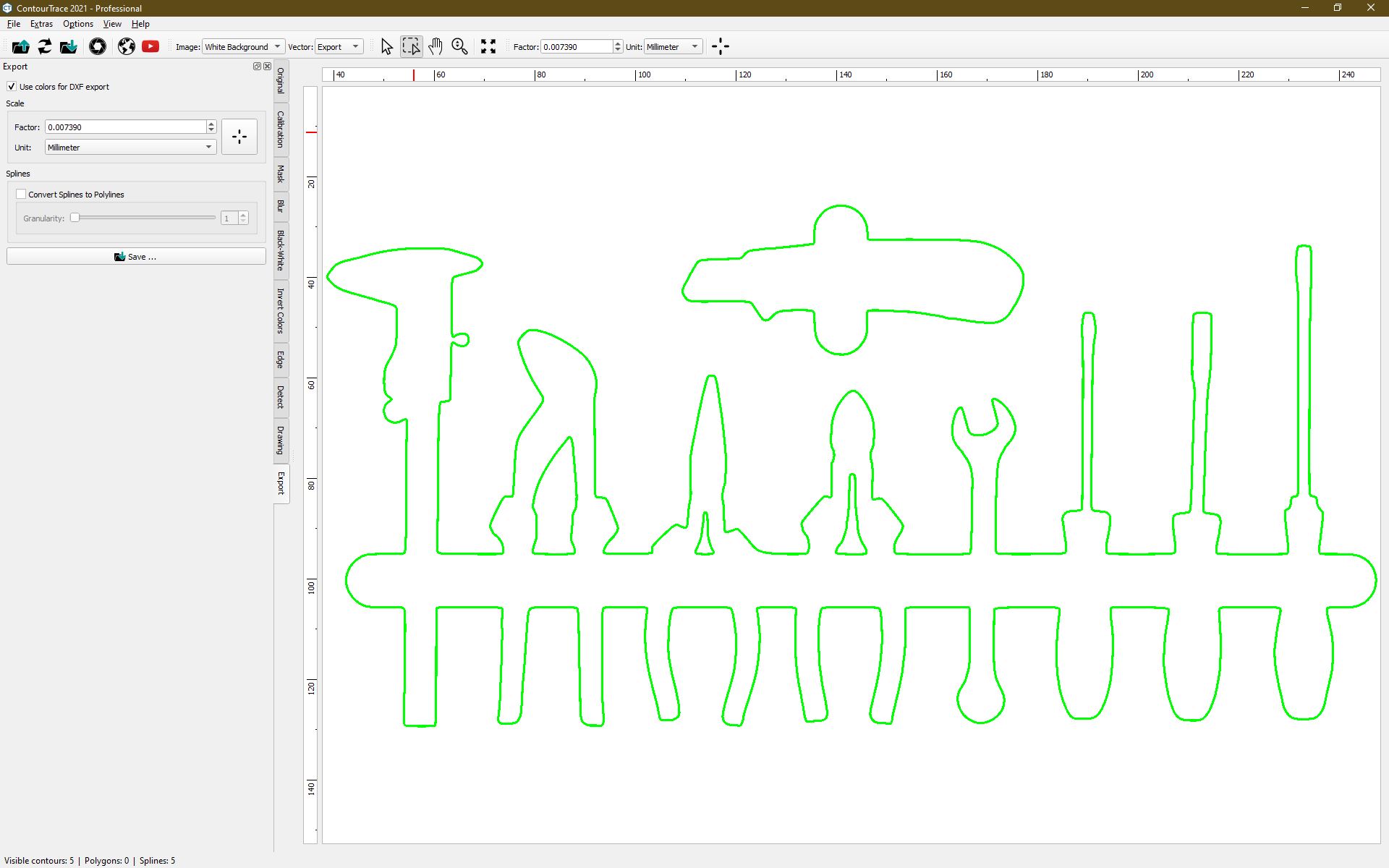
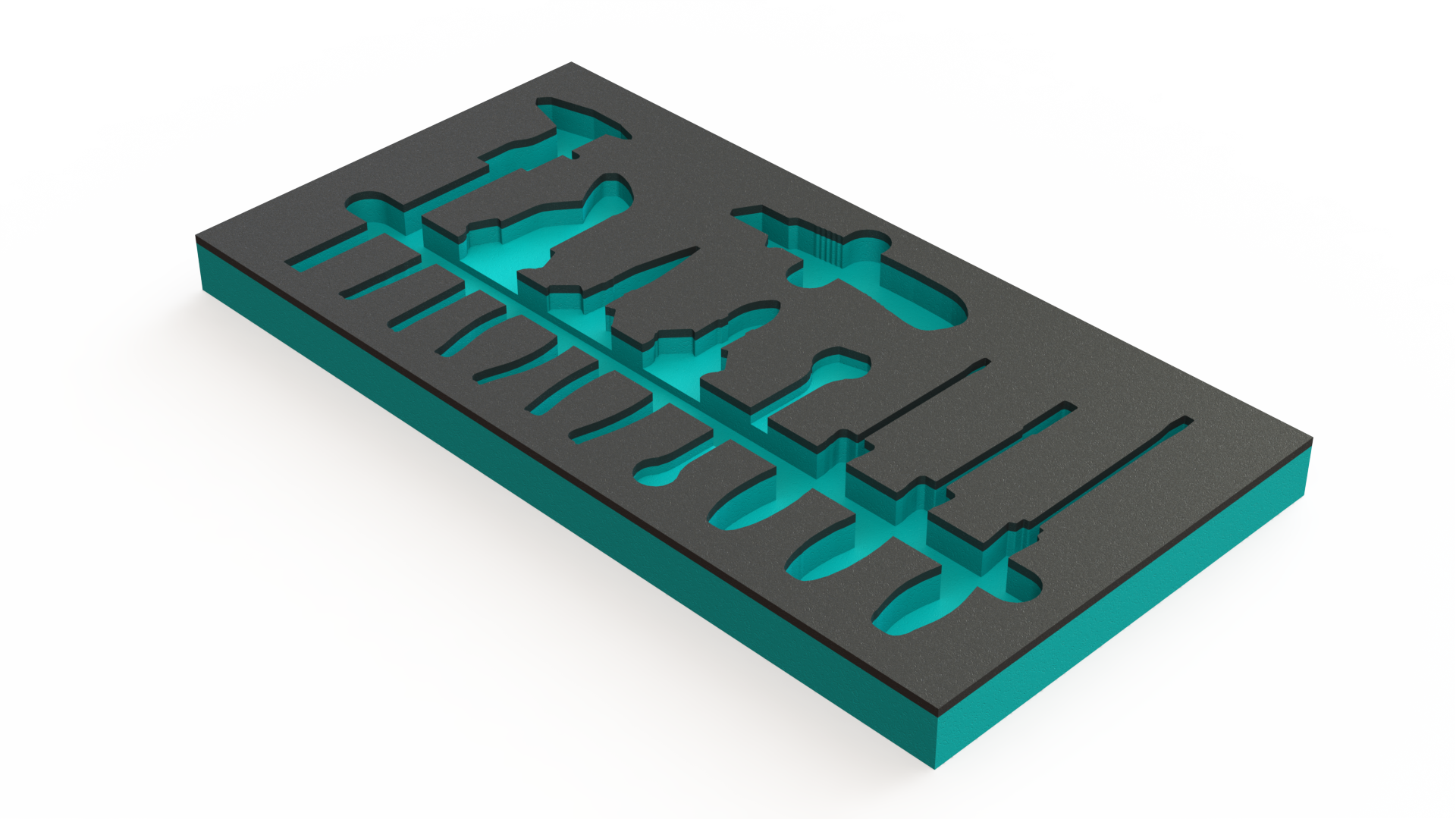
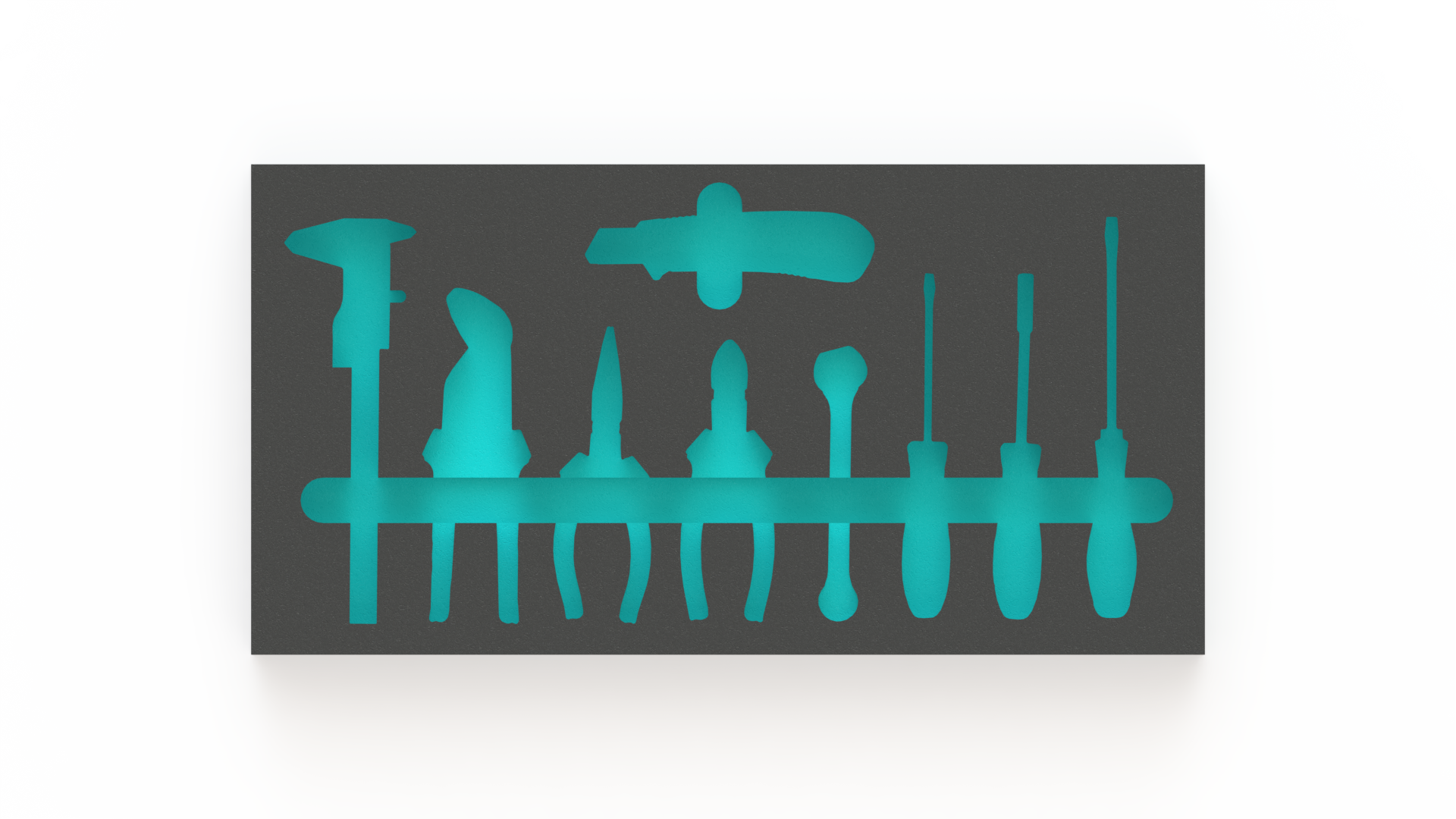
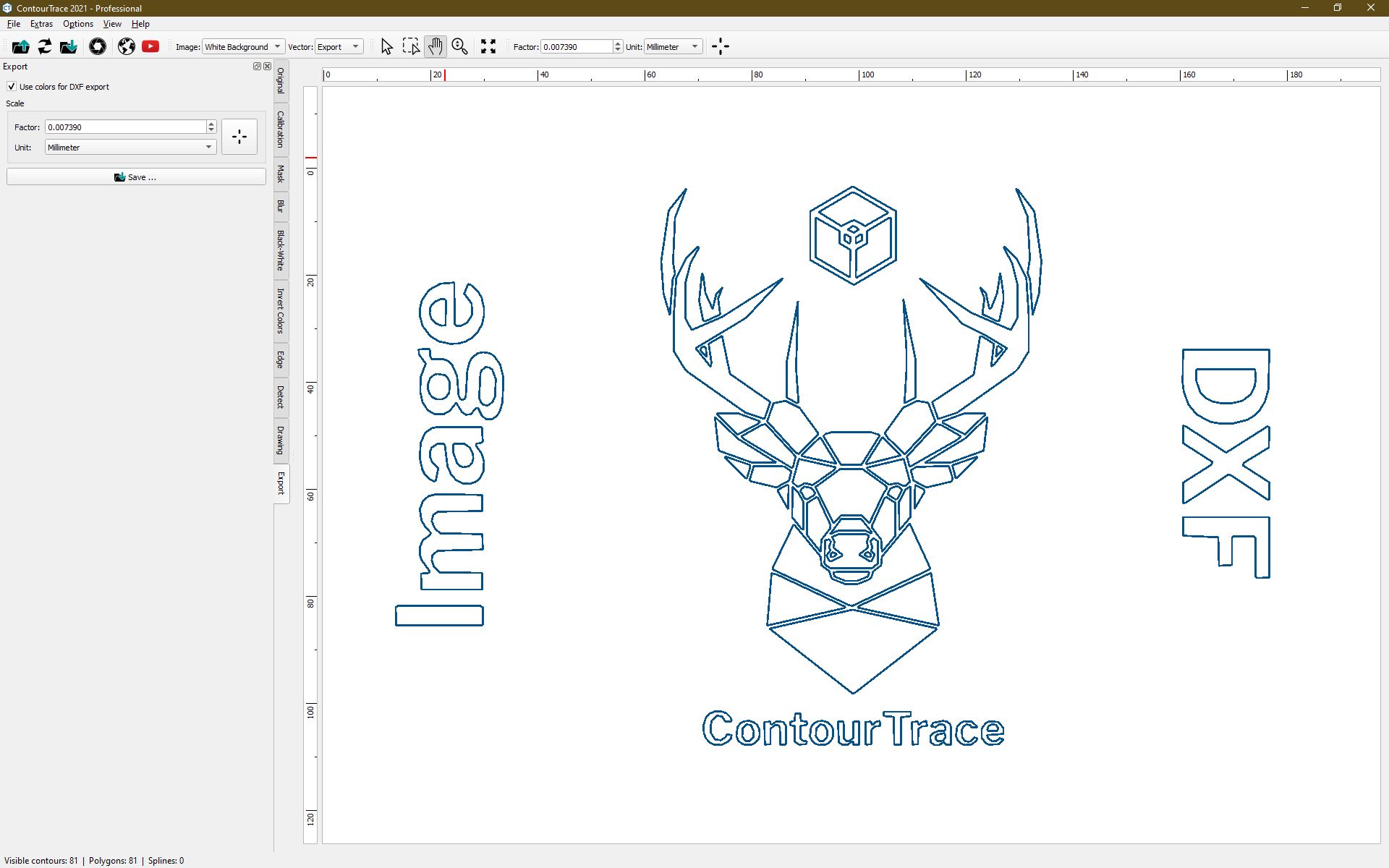
Algumas das muitas aplicações para a ContourTrace. Mesmo as difíceis tarefas industriais são perfeitamente dominadas.
Você gostaria de ver mais?
Entre em contato conosco e solicite uma apresentação online gratuita e sem compromisso ao vivo.

 Portuguese
  English
  Bulgarian
  Chinese
  Czech
Czech  Danish
  Dutch
Dutch  Estonian
  Finnish
  French
  German
  Greek
Greek  Hungarian
  Indonesian
  Italian
  Japanese
  Lithuanian
  Latvian
  Polish
  Romanian
  Russian
  Slovak
  Slovenian
  Spanish
  Swedish
  Turkish
  Ukrainian